
Exporting Deviations
You may need to export a deviation in order to share it with an external contractor.
In this lesson, you will learn two ways to export deviations:
- Export a specific deviation
- Bulk export deviations using filters
1
Click through to learn how to export a specific deviation.
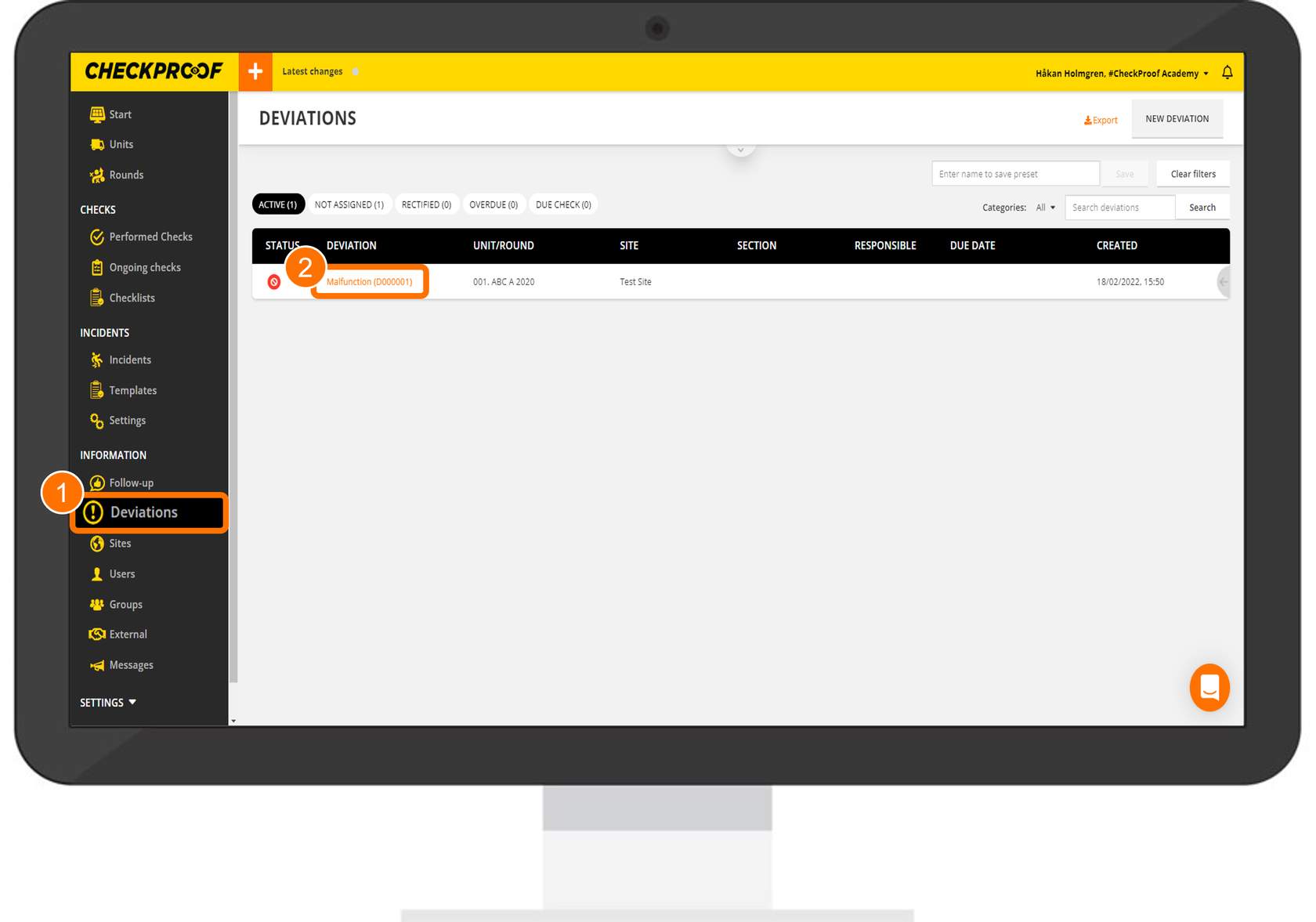
First click “Deviations” in the left-side panel and select a deviation from the list.
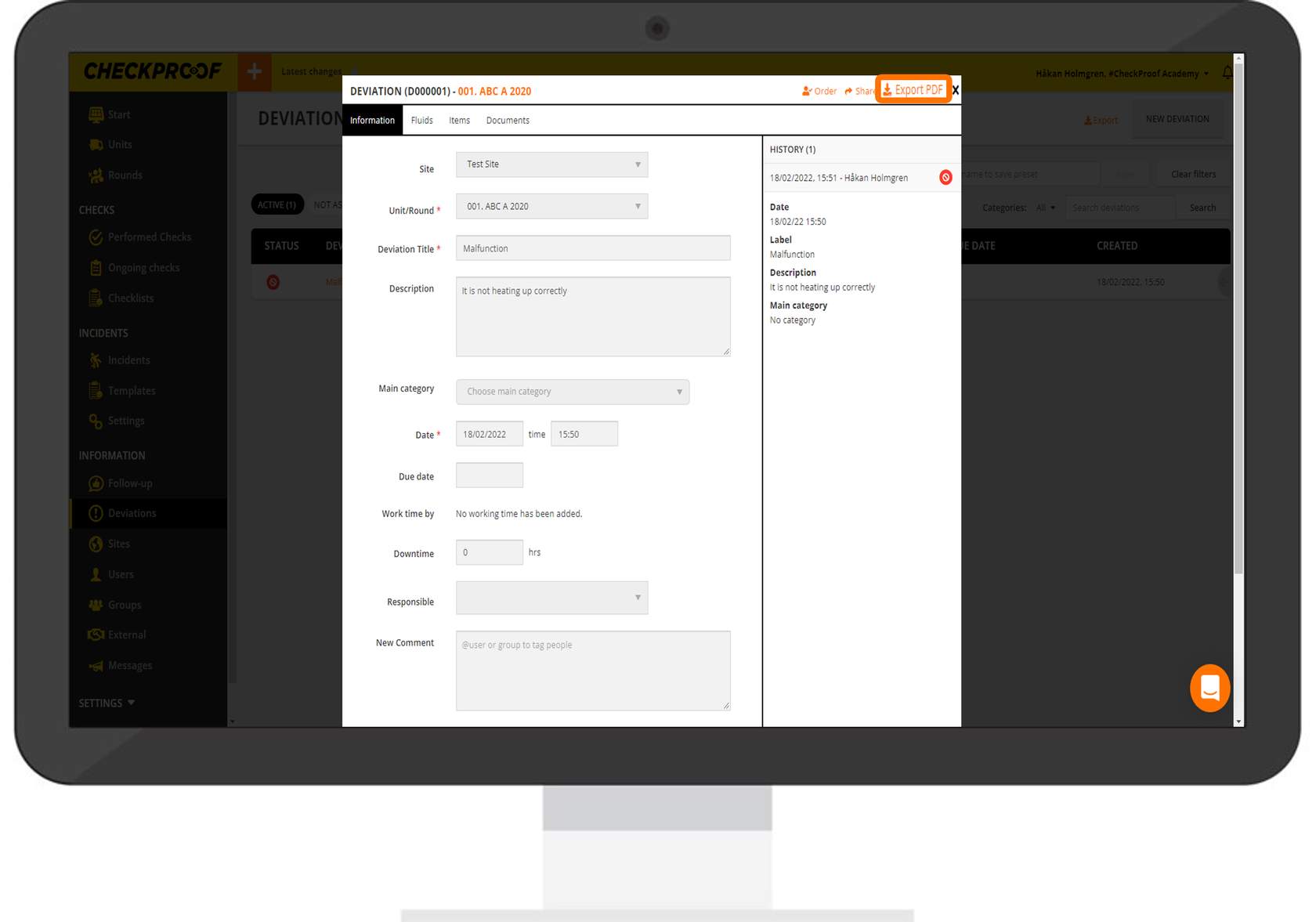
Here you will see the information related to this deviation. Click the “Export PDF” button in the upper-right corner.
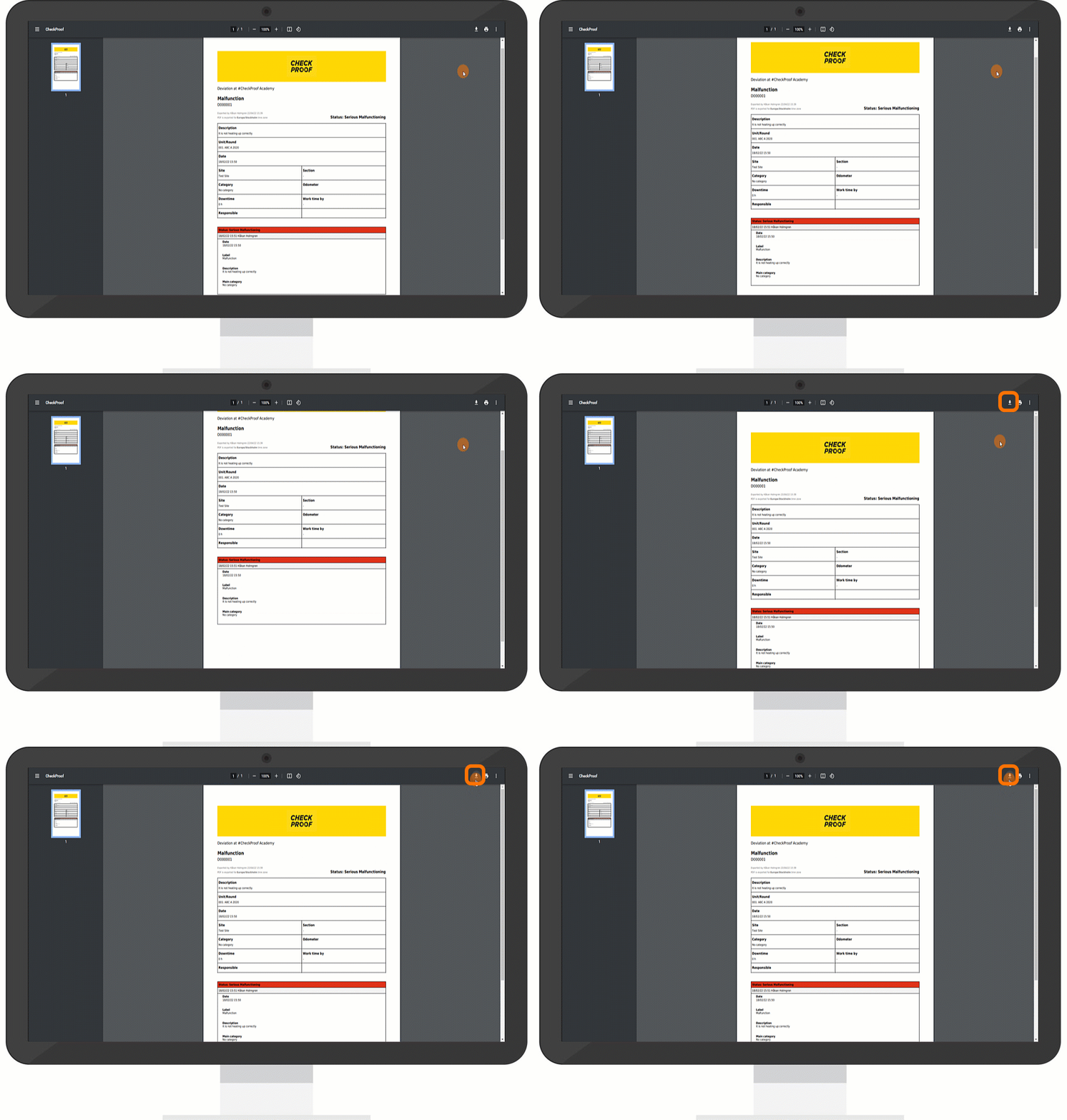
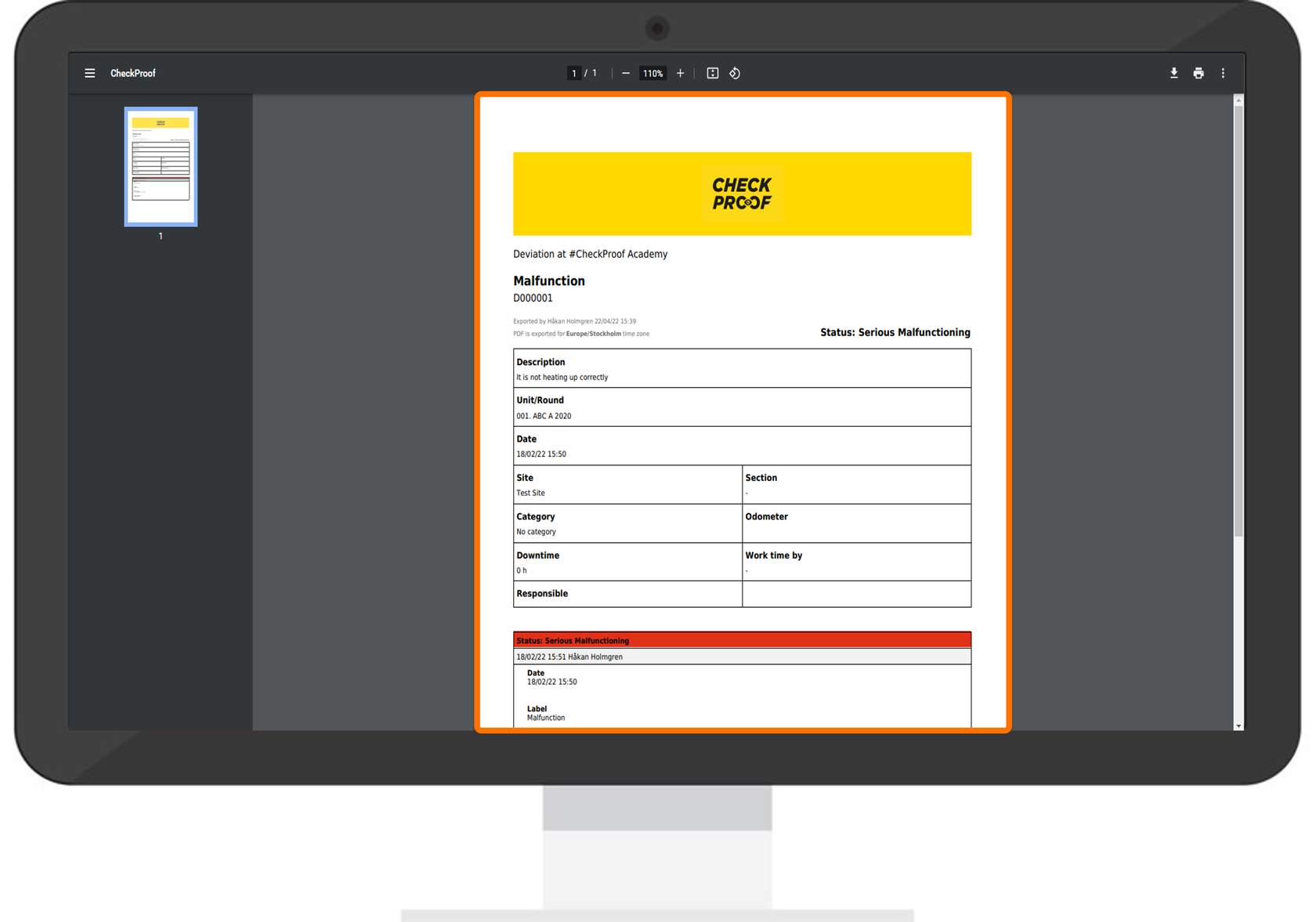
A preview of the deviation will open in a new window. Click the download icon in the upper-right corner to download the deviation as a PDF to your device.
Great! Now you know how to export a specific deviation from the CheckProof Admin Panel.
2
Click through to learn how to export all selected deviations using filters.
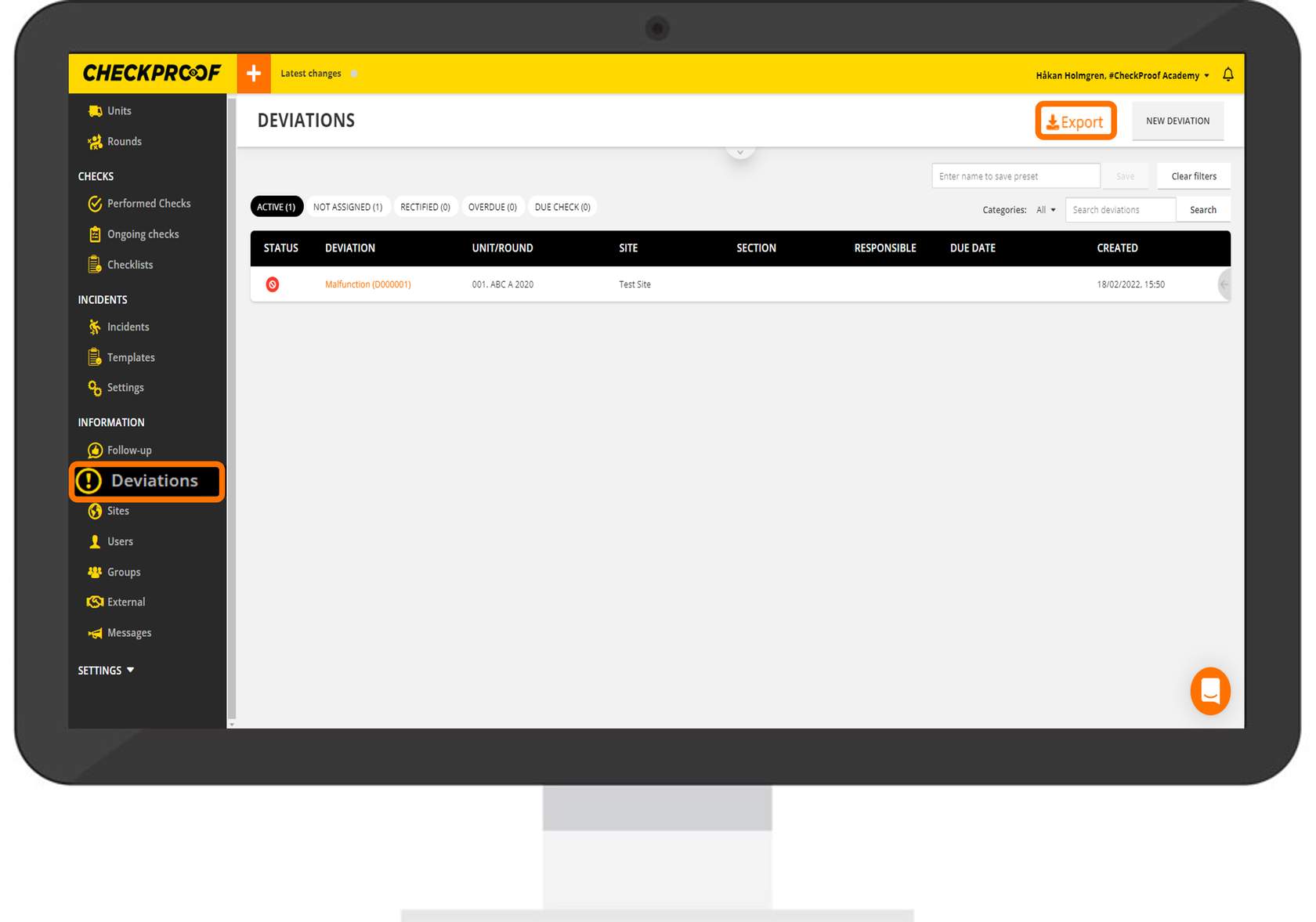
First click “Deviations” in the left-side panel and then click the “Export” button.
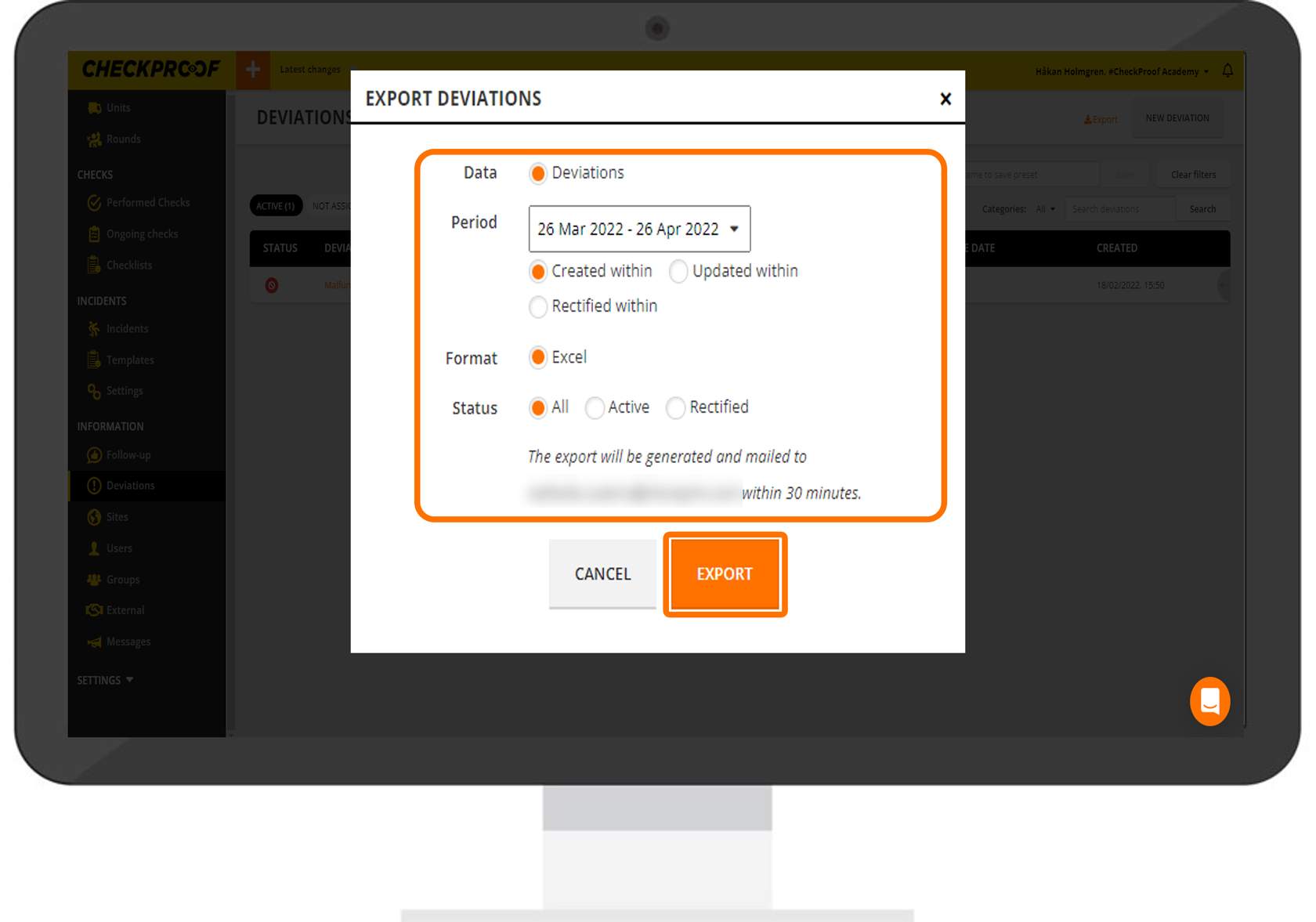
Now you will be able to specify the deviations you wish to export. You can filter deviations using the following filters.
- Data: The only option available here is “Deviations” as you accessed directly via “Deviations” in the side panel.
- Period: Choose a period of time using the calendar to export any deviations that occurred during this period.
- Format: The report will be generated as an Excel spreadsheet.
- Status: Here you can choose to include deviations that are active, rectified, or both.
When you are finished, click the “Export” button.
Great! Now you know how to export selected deviations from the CheckProof Admin Panel.
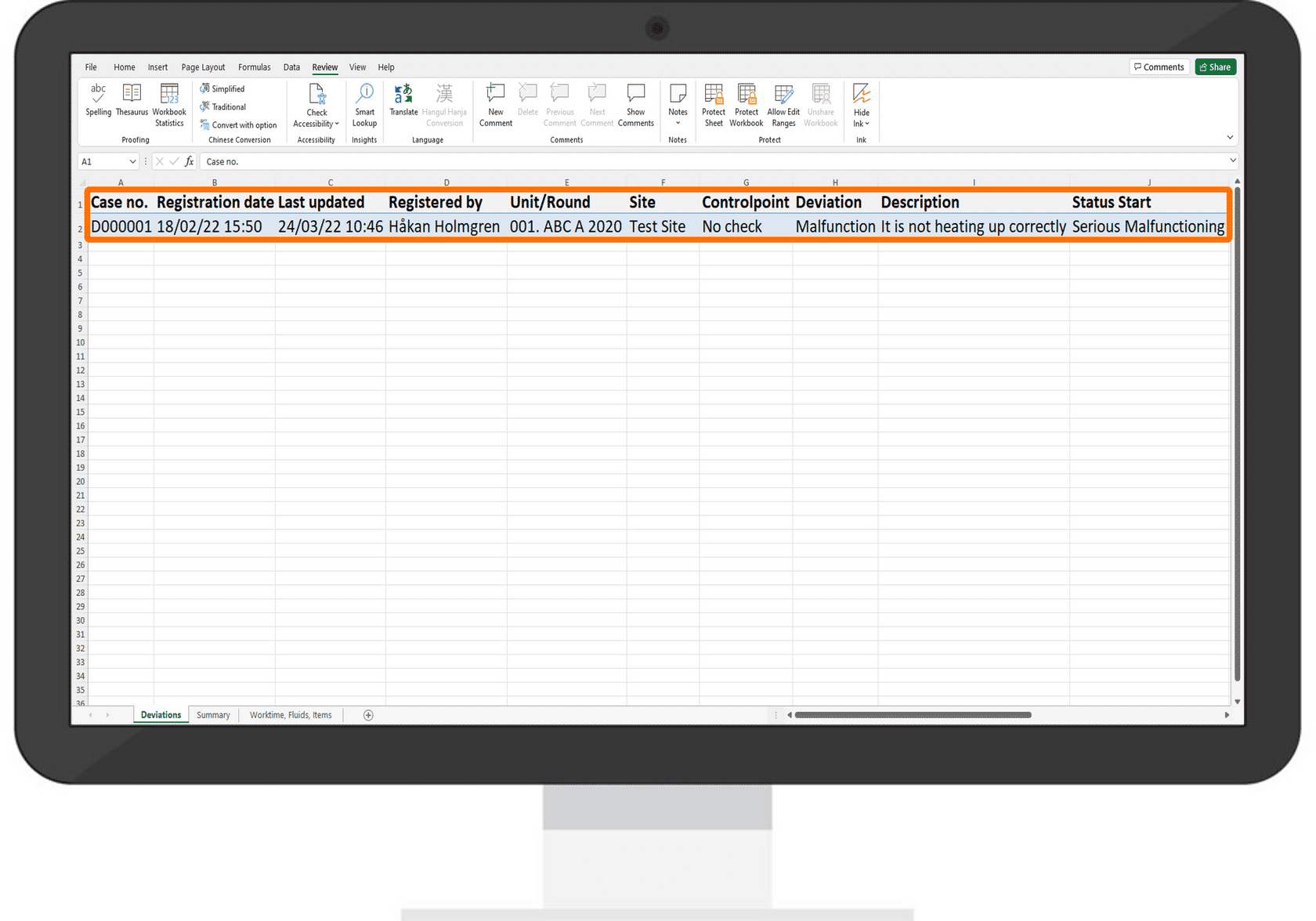
You can view the list of filtered deviations in the Excel spreadsheet that has been generated for you.

