
Performing a check
Start the check
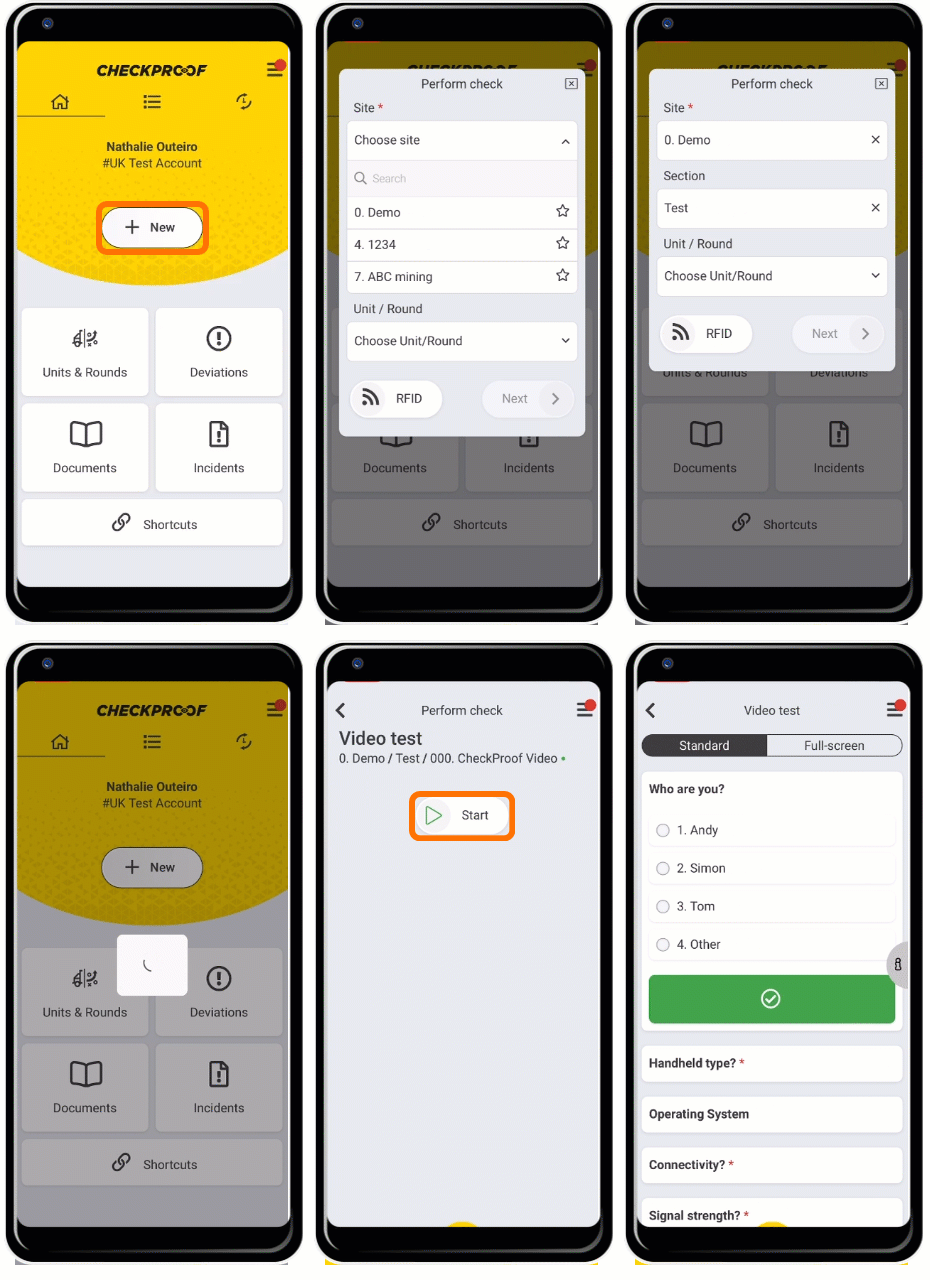
To start a check :
1.Click on “New”.
2.Select “Check”.
3.Fill in the “Site”, “Section”, and select the “Unit/Round”, then click “Next”.
4.Now select the check you want to perform and click on “Start”.
Choose Your View
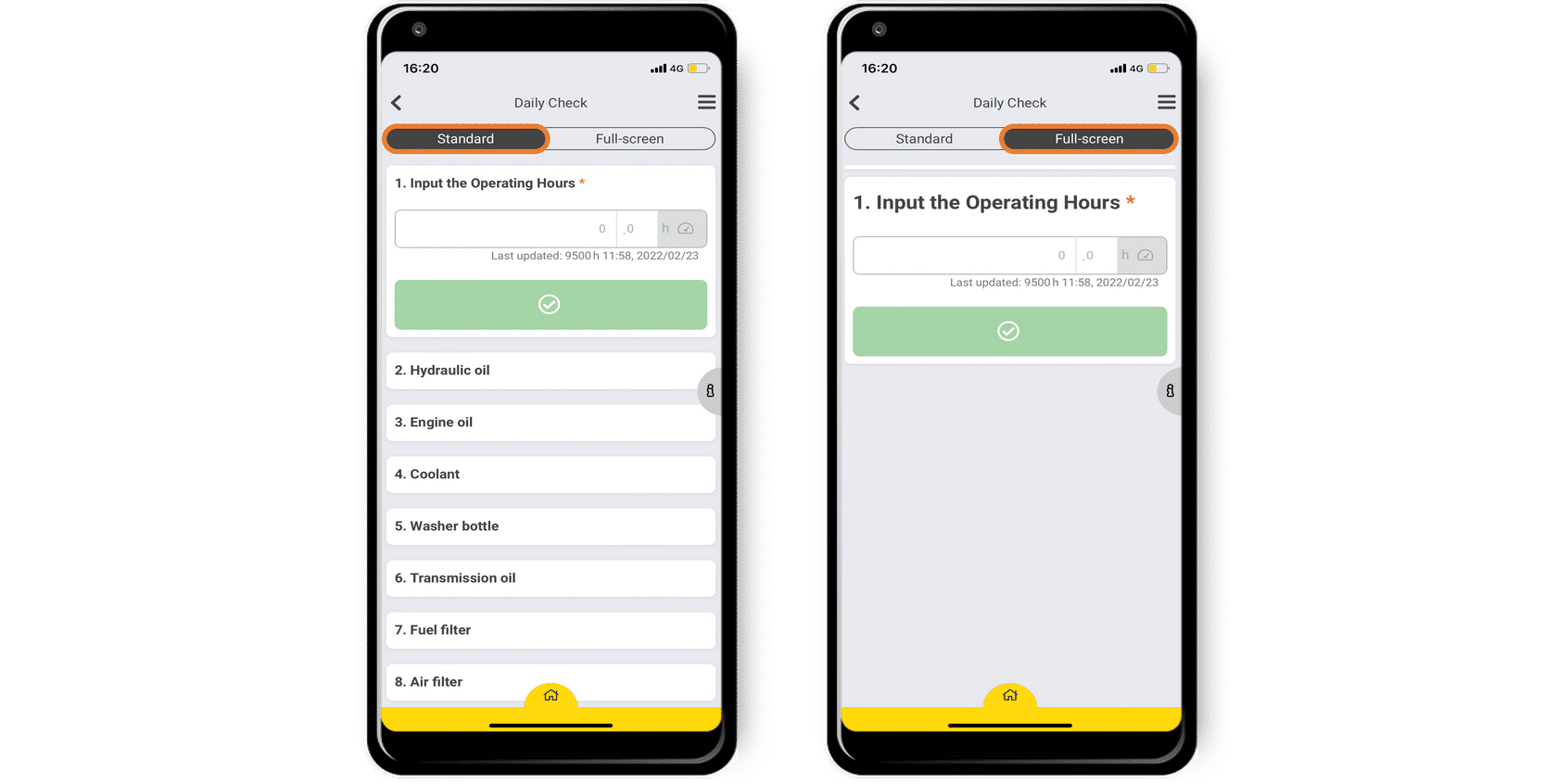
There are two views in the app:
“Standard” shows you all the control points you have to perform on the open screen all at once. You only need to scroll down to see the next control points.
“Full-Screen” shows you only one control point at a time. You will need to fill in the previous control point to go on to the next one.
You can choose the view you prefer.
Complete All the Steps
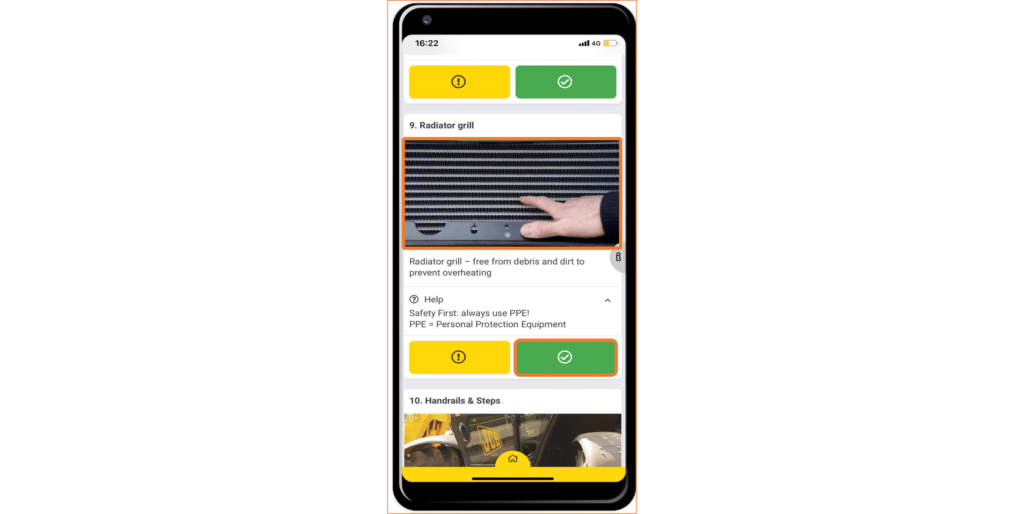
Follow the instructions for each step
• If everything is fine and you want to go on to the next control point, press the green button.
• If the green button is faded, you will need to fill in some more information to proceed.
• If there is a deviation and you need to report a problem, press the yellow button.
• All questions must be answered before you can continue.
Reporting a deviation
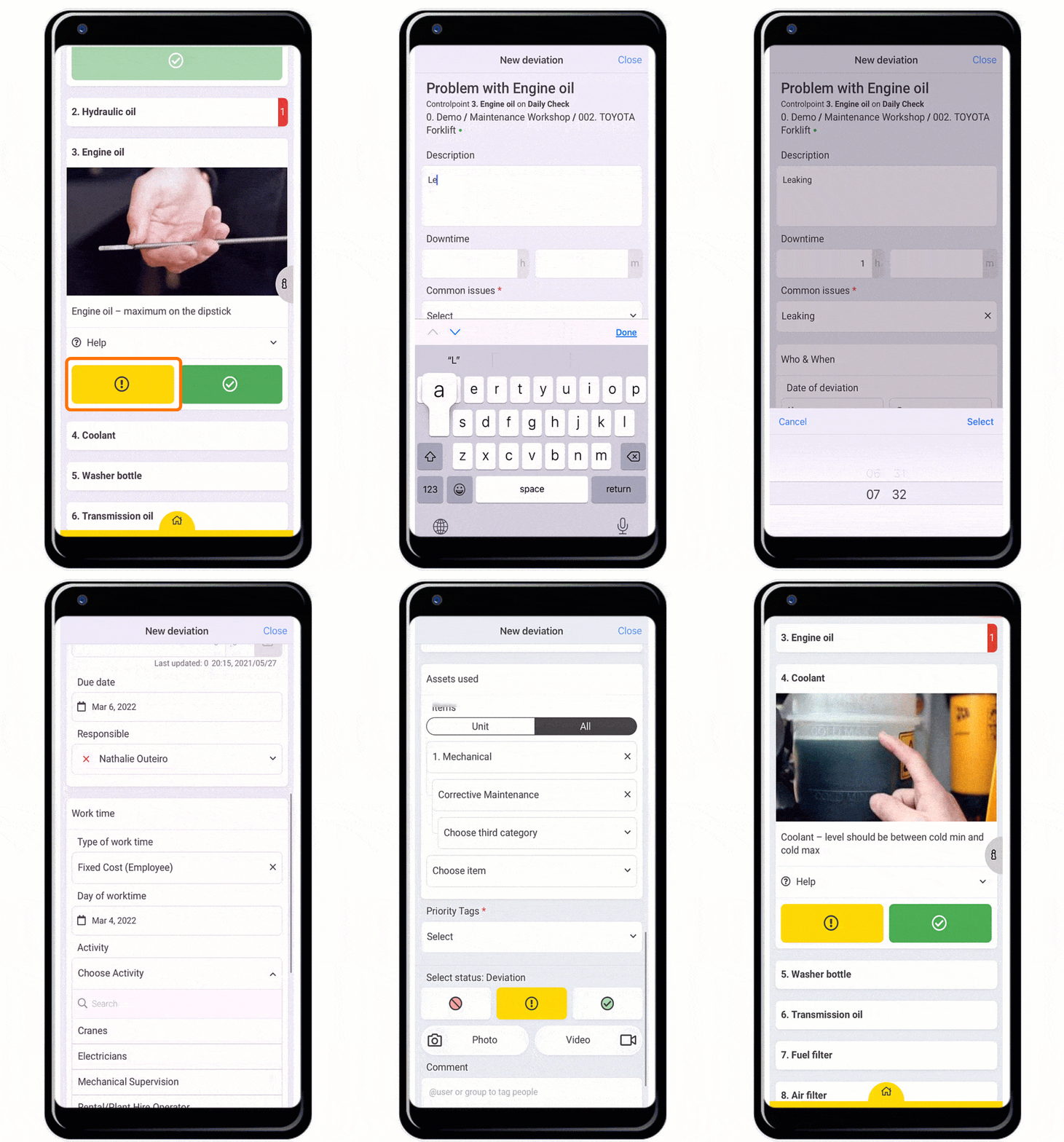
You can report a problem by pressing the yellow button:
- Fill in all the necessary information about the deviation. It is optional to add a photo(s) and a responsible person or group.
- You can also select the status of the deviation:
- Red: Serious malfunctioning
- Yellow: Deviation
- Green: Rectified
Take a Picture
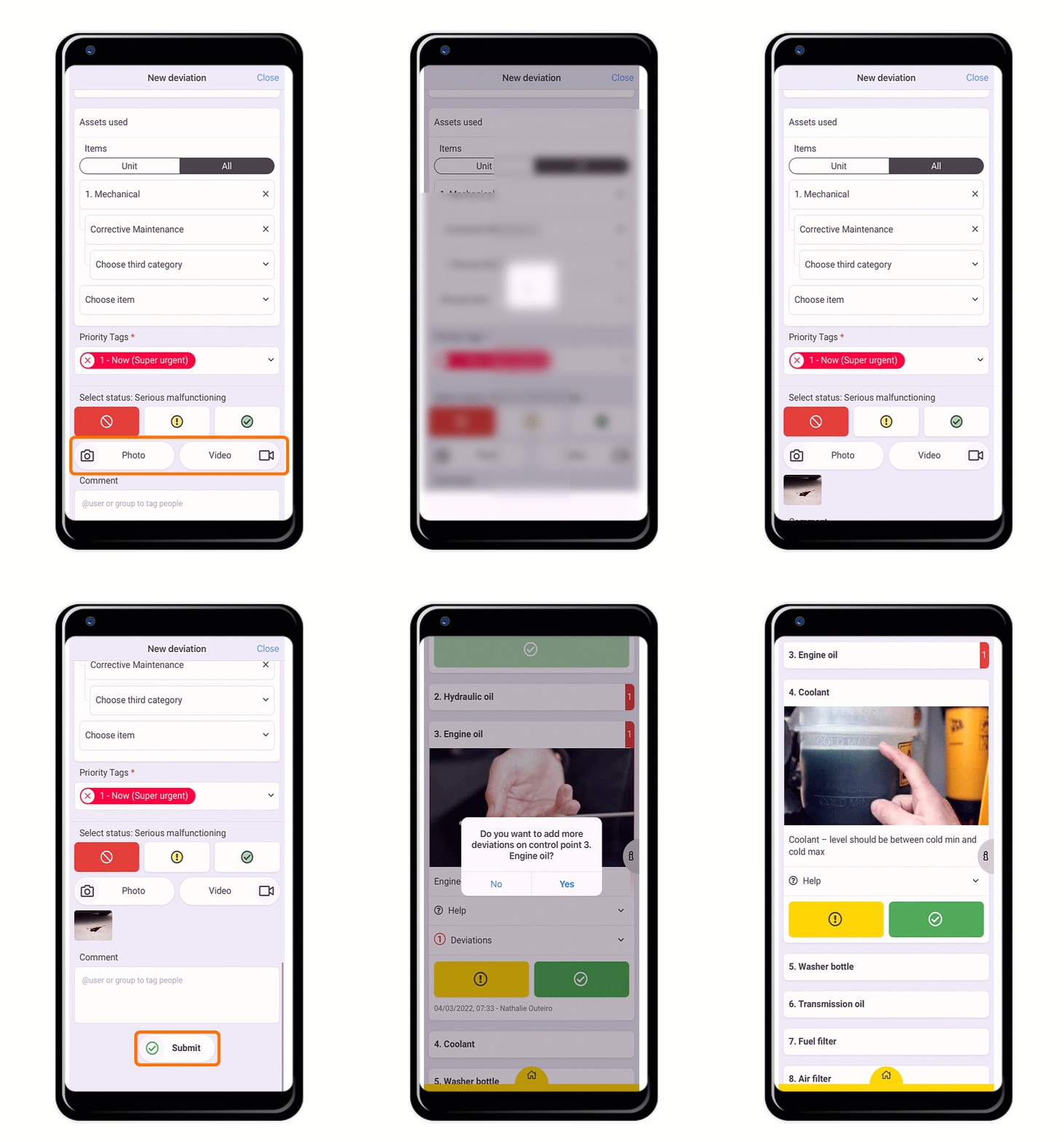
By clicking on the camera icon, you can either take a new photo or attach a photo already saved on your mobile device.
- Once you have taken a photo select “Use Photo”.
- Then you’ll have a chance to modify your picture (e.g. to mark the area or add text) by pressing the paint palette icon.
- Confirm your choice by clicking on the green button.
In the same way, you could also add a video instead of a picture by clicking on “Video”.
After you have filled in all the information and added photos, press “Submit” to save the deviation to your check.
Submit
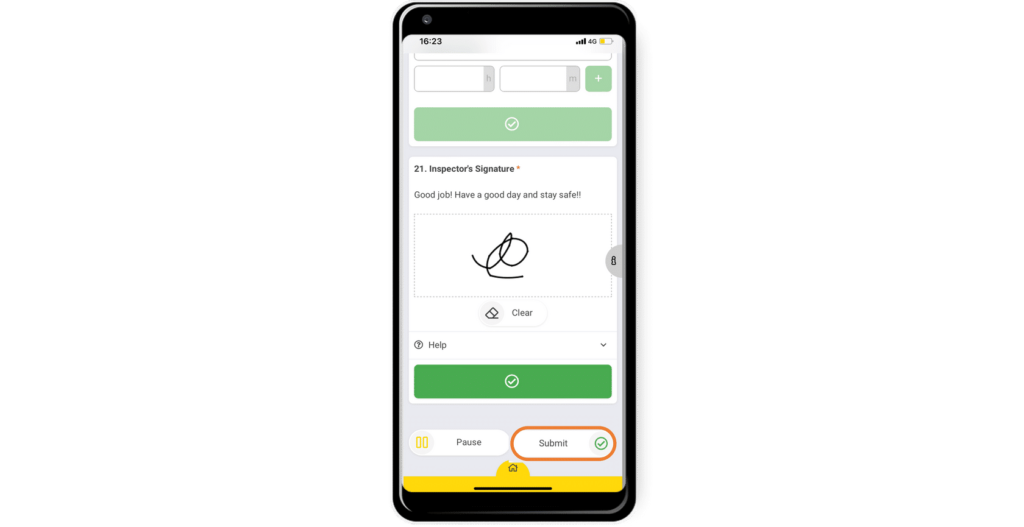
Once you have finished performing the inspection and you have gone through all the steps, you will see an overview on your screen.
- If you want to make some changes and/or fill in additional information for the check, scroll back to what you want to change or click “Pause” to stop the check and do it at a later stage.
- Once you press “Submit” the report will be created and you will not be able to make any more changes.

