Reporting a Deviation
Besides reporting a deviation while performing a check, you can also directly report a deviation.
Deviations
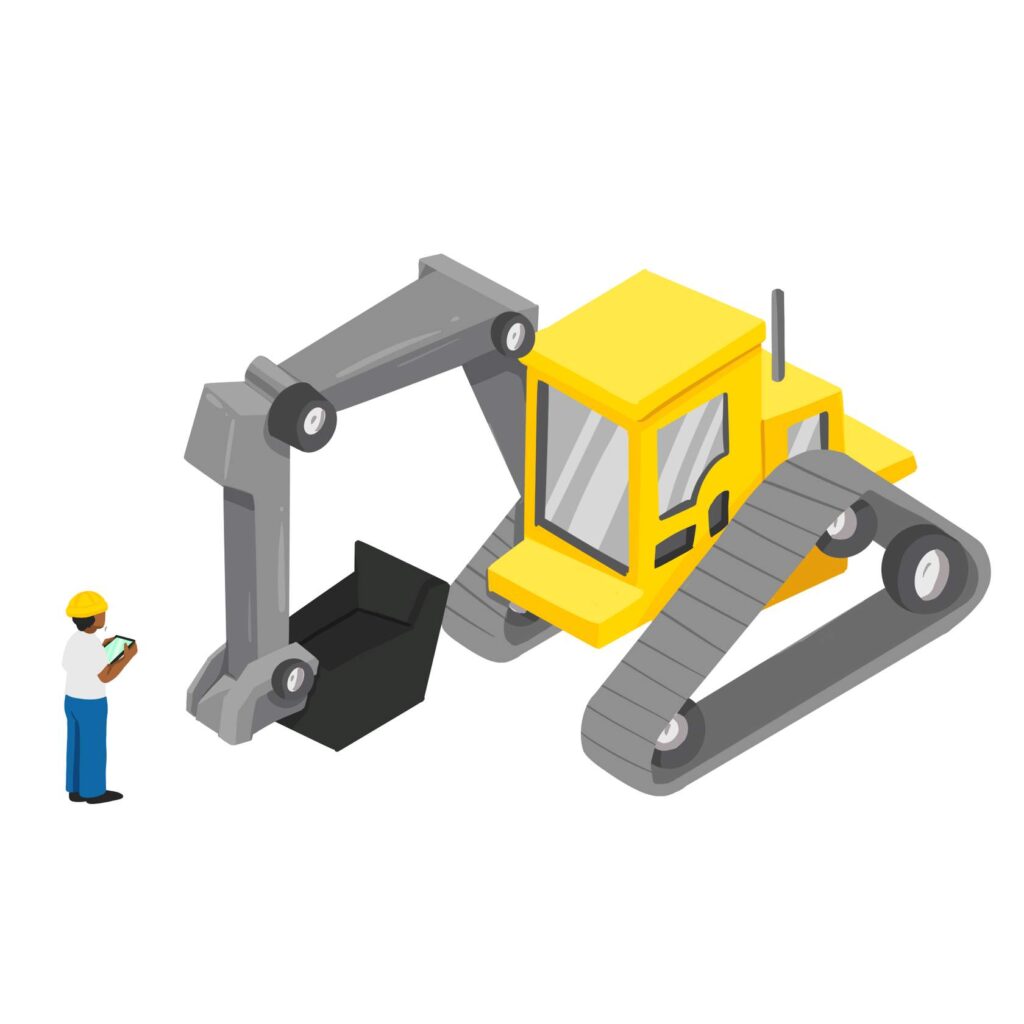
Let’s say you are out in the field using your equipment and you notice that something is not working correctly, you can report the deviation(s) immediately in the CheckProof app.
Let’s take a look at how to do this!
1
START A DEVIATION
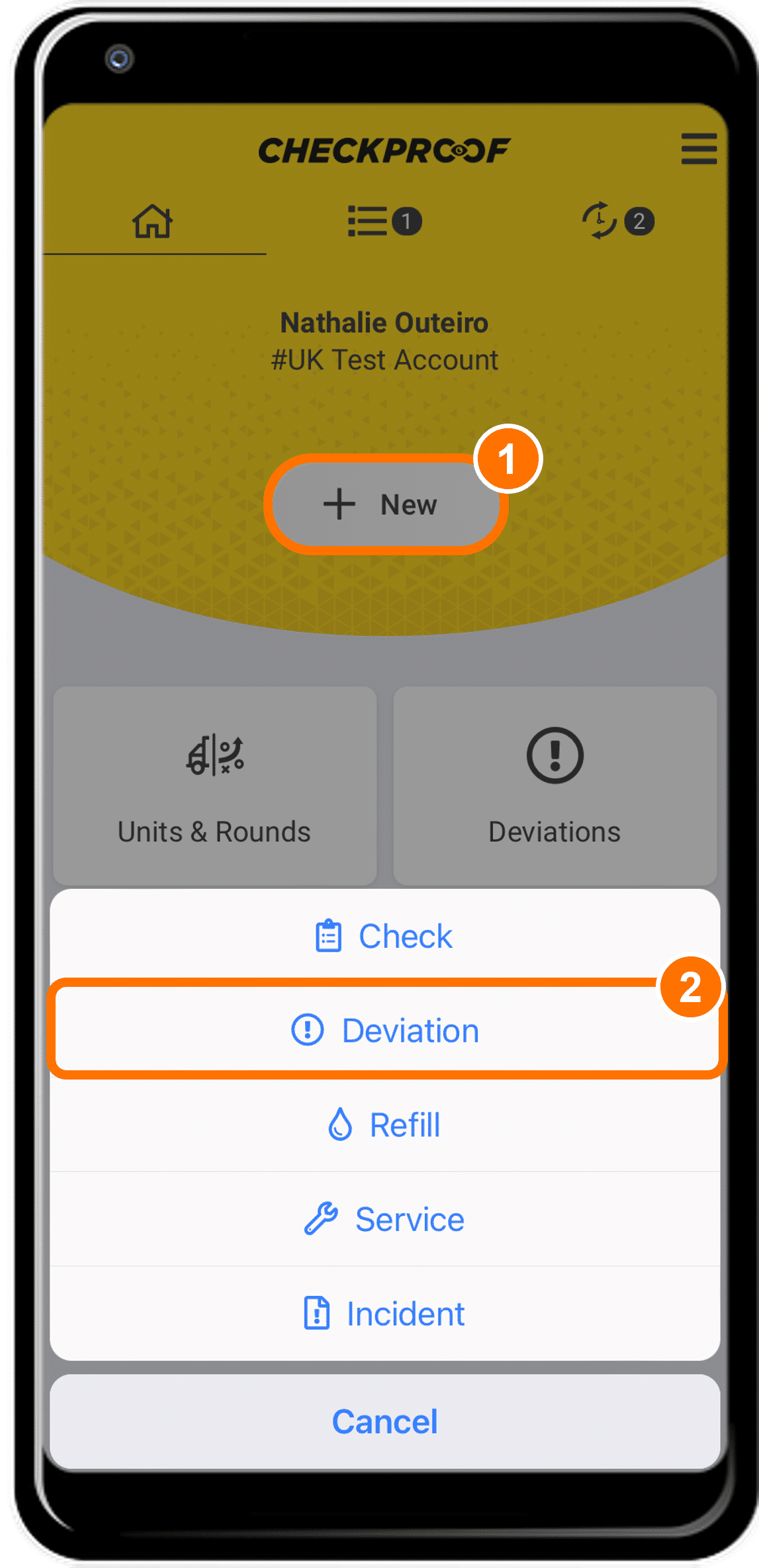
To start reporting your deviation, click on the “New” button and then select “Deviation”.
2
SET THE SITE AND UNIT/ROUNDS
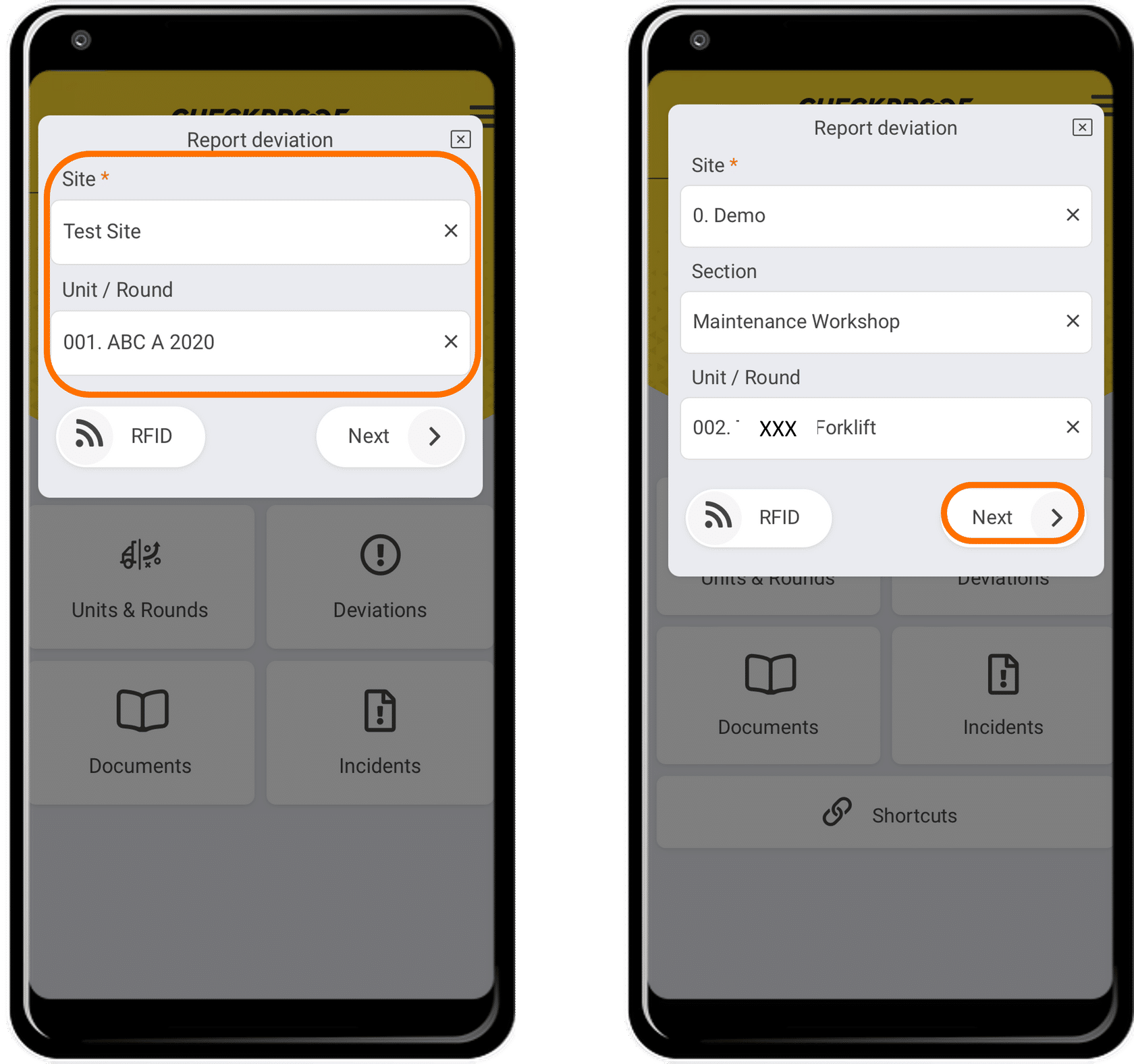
The only difference between creating a deviation directly from a check is that you now need to select the “Site” and “Unit/Round” you are referring to.
- Select the “Site” and “Unit/Round” from the drop-down list.
- Click on “Next” to continue.
Note: The site and unit or round must have been previously created in the system.
3
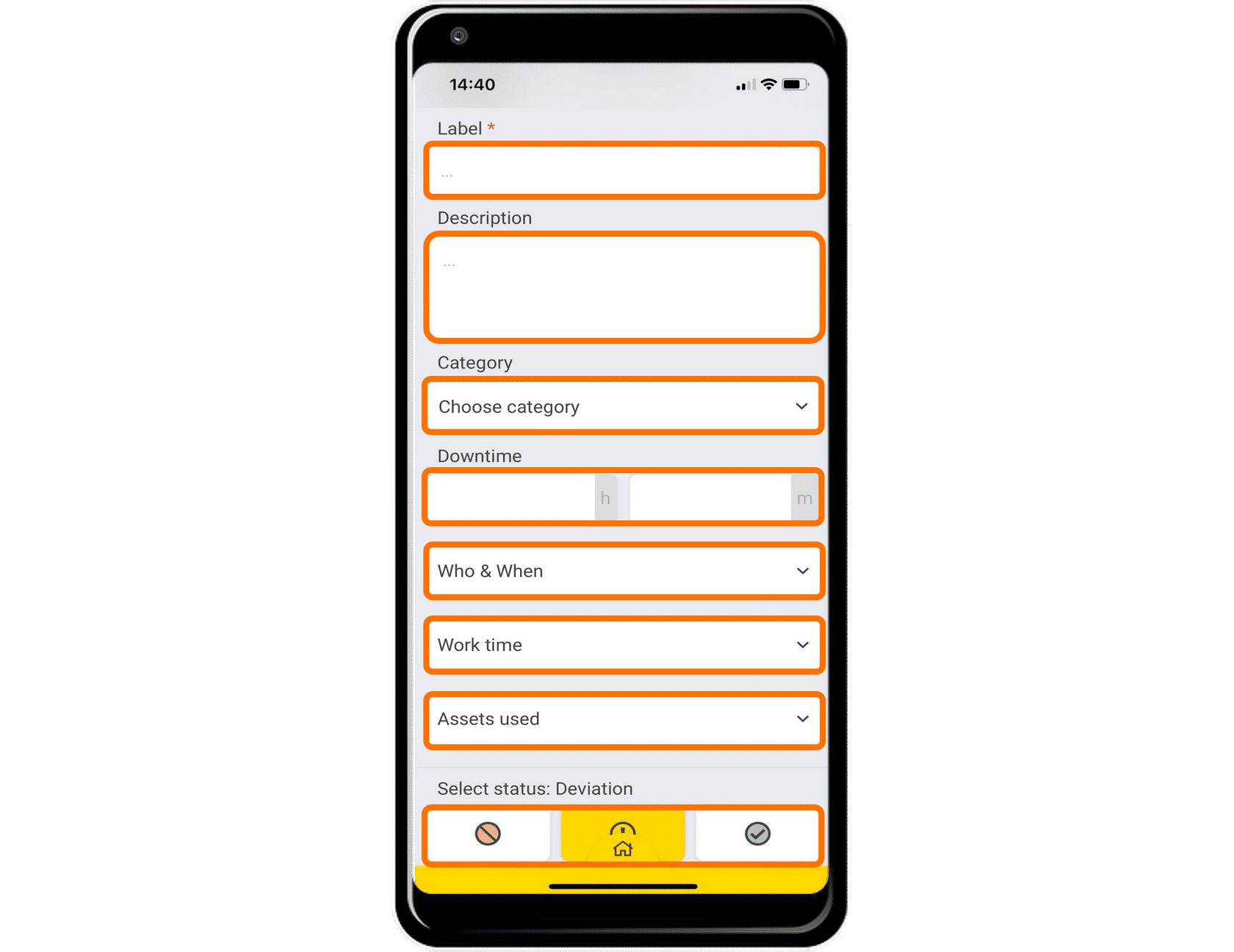
You will be prompted with a form that you must complete. The form will depend on the information that has been set for that unit/round or on your account setup.
4
ADD PHOTOS AND VIDEOS
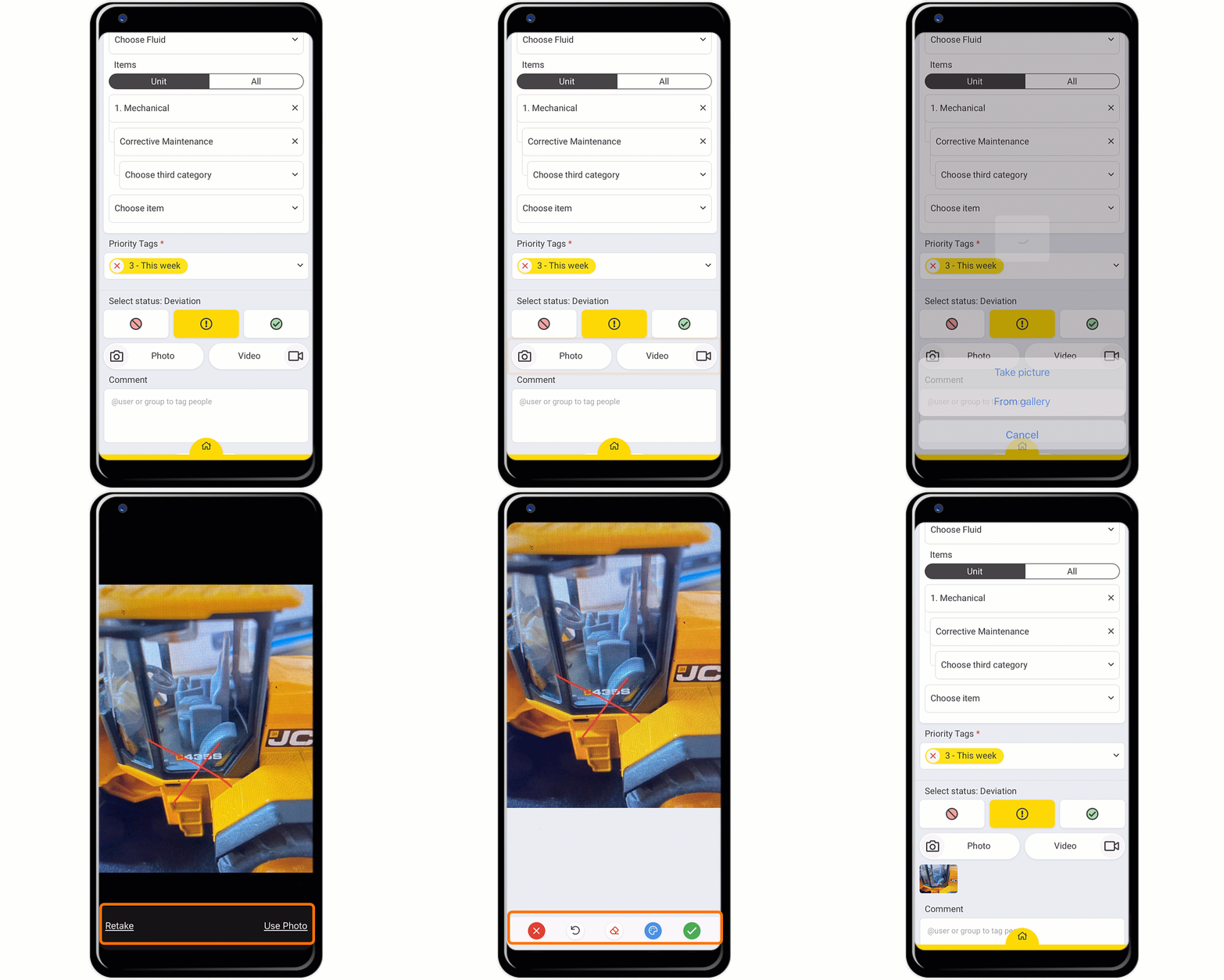
You can add pictures or recordings of the deviation. This is a very good way to keep track of the issue and explain the situation.
Click on “Photo” or “Video”. You can either choose a photo from your device’s gallery or you can take a new photo or video.
Note: You will need to give CheckProof access to your gallery and camera for this feature to work.