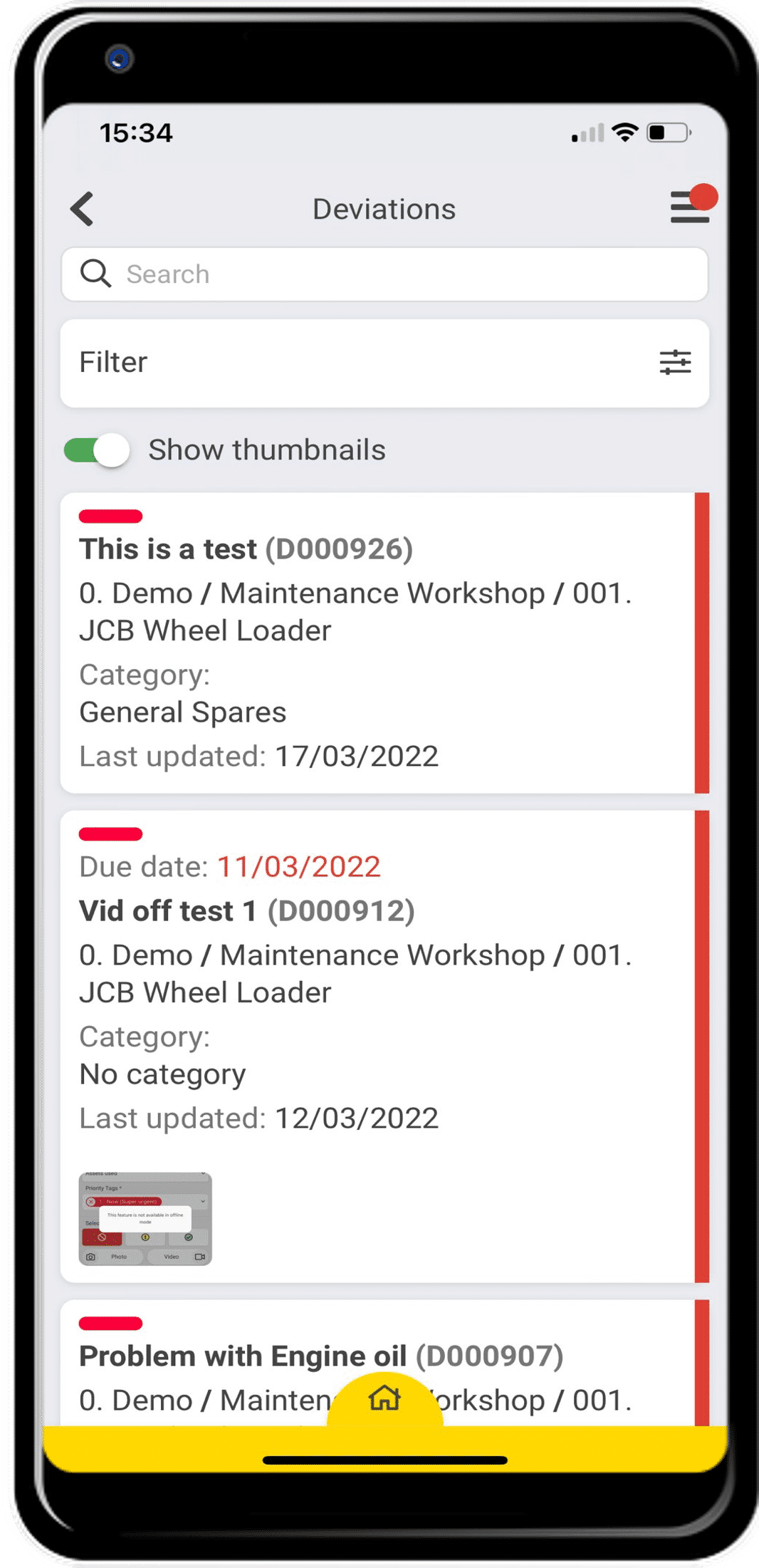
Viewing Active Deviations
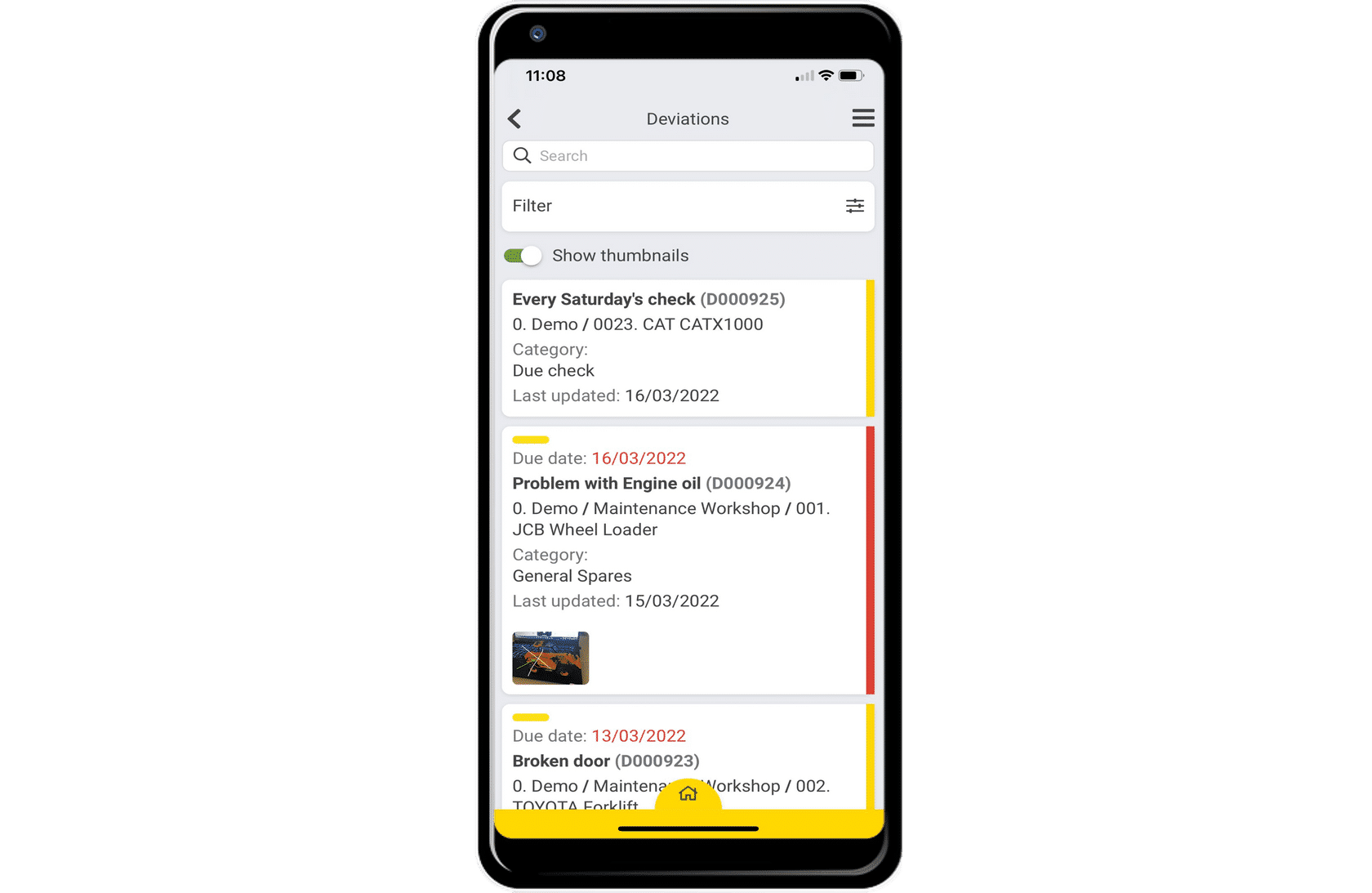
Your active deviations are color-coded depending on their status and their due date. Let’s take a look at what each code means.
Access Your Active Deviations
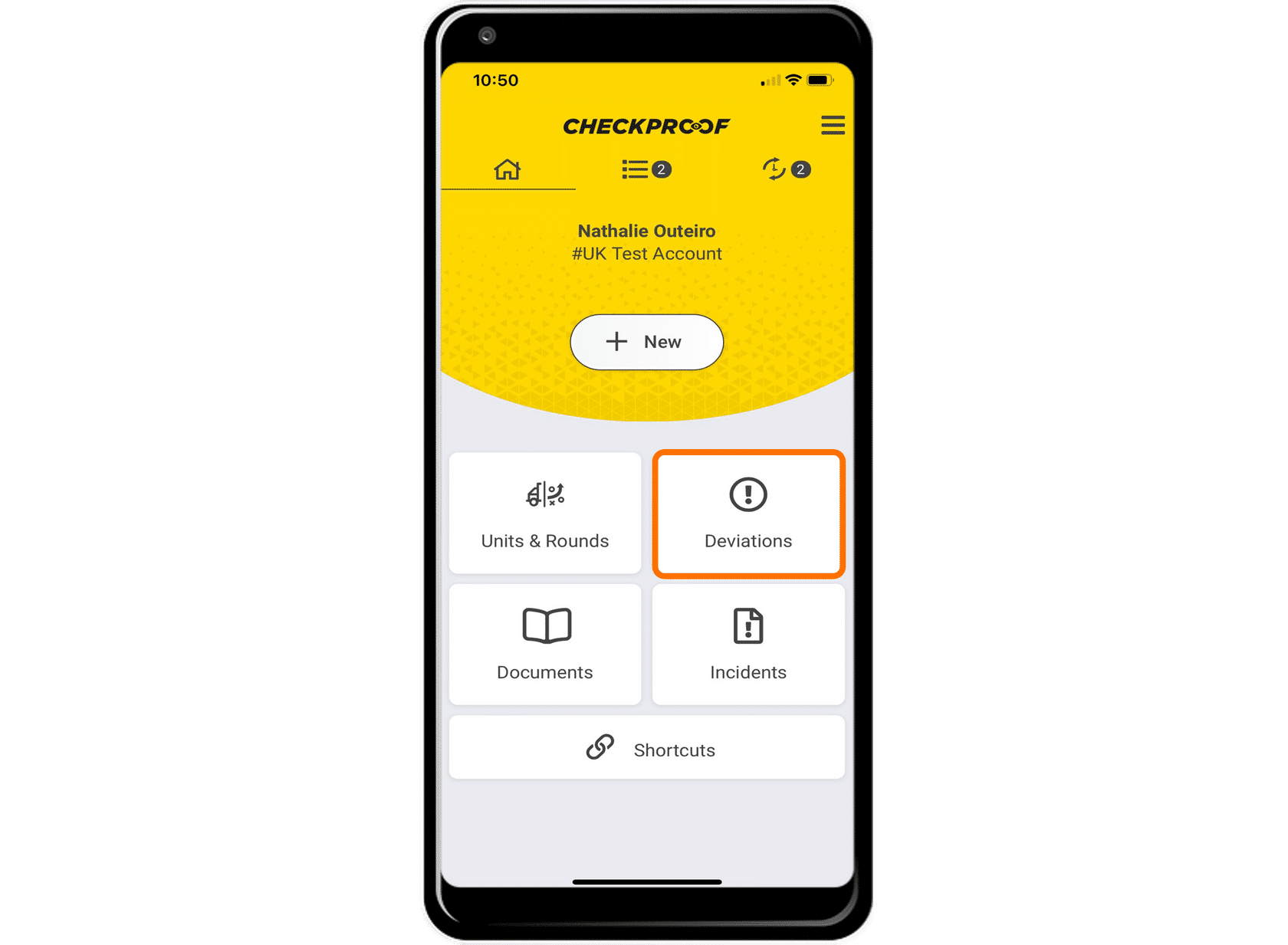
To open your active deviations, click “Deviations” from the homepage.
Now you will see a list of your active deviations. Click the markers to find out what the different colors mean.
Filtering Your Active Deviations
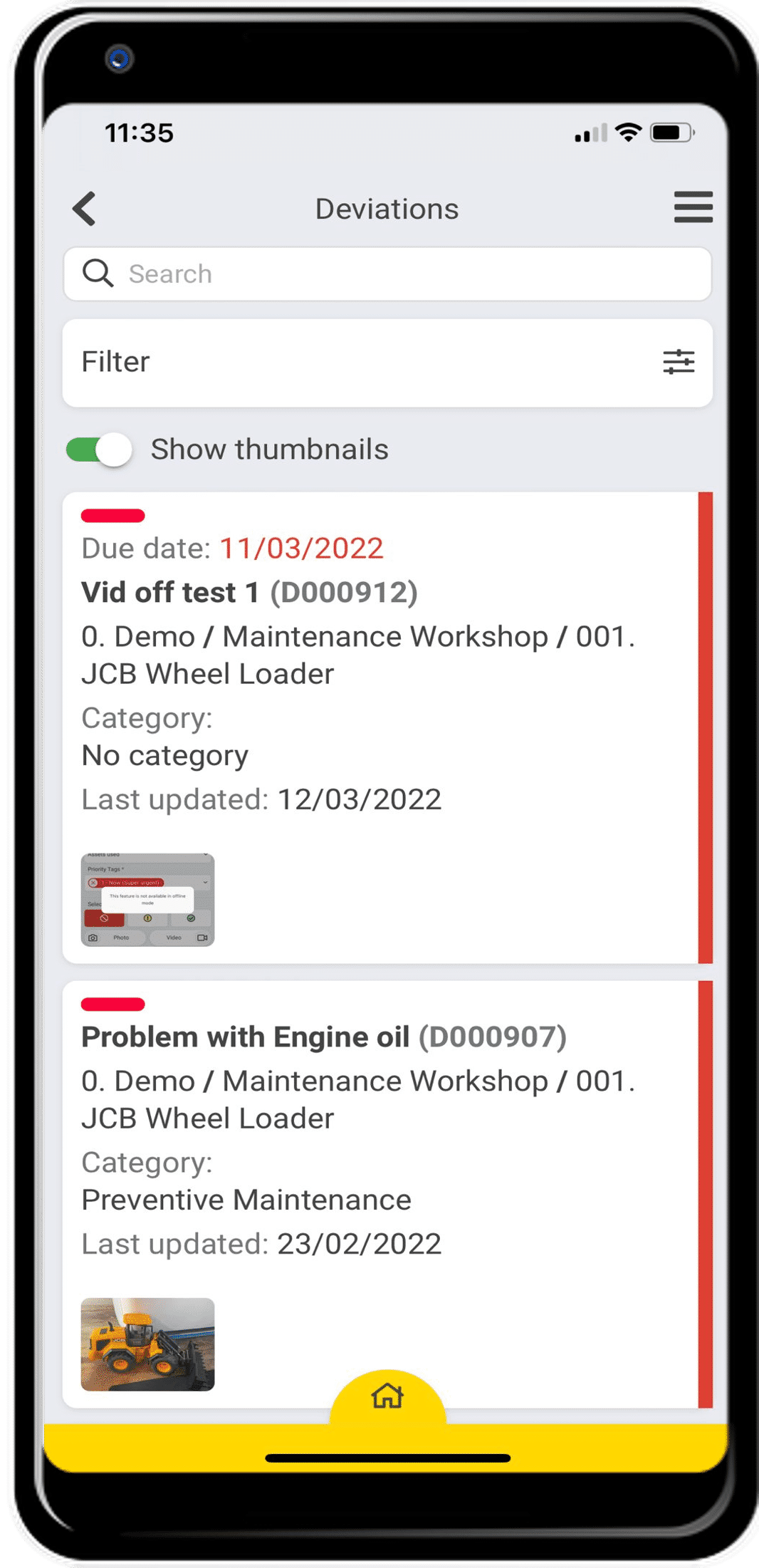
You are able to filter your active deviations. This makes it easier to see the more relevant tasks for you.
Filter
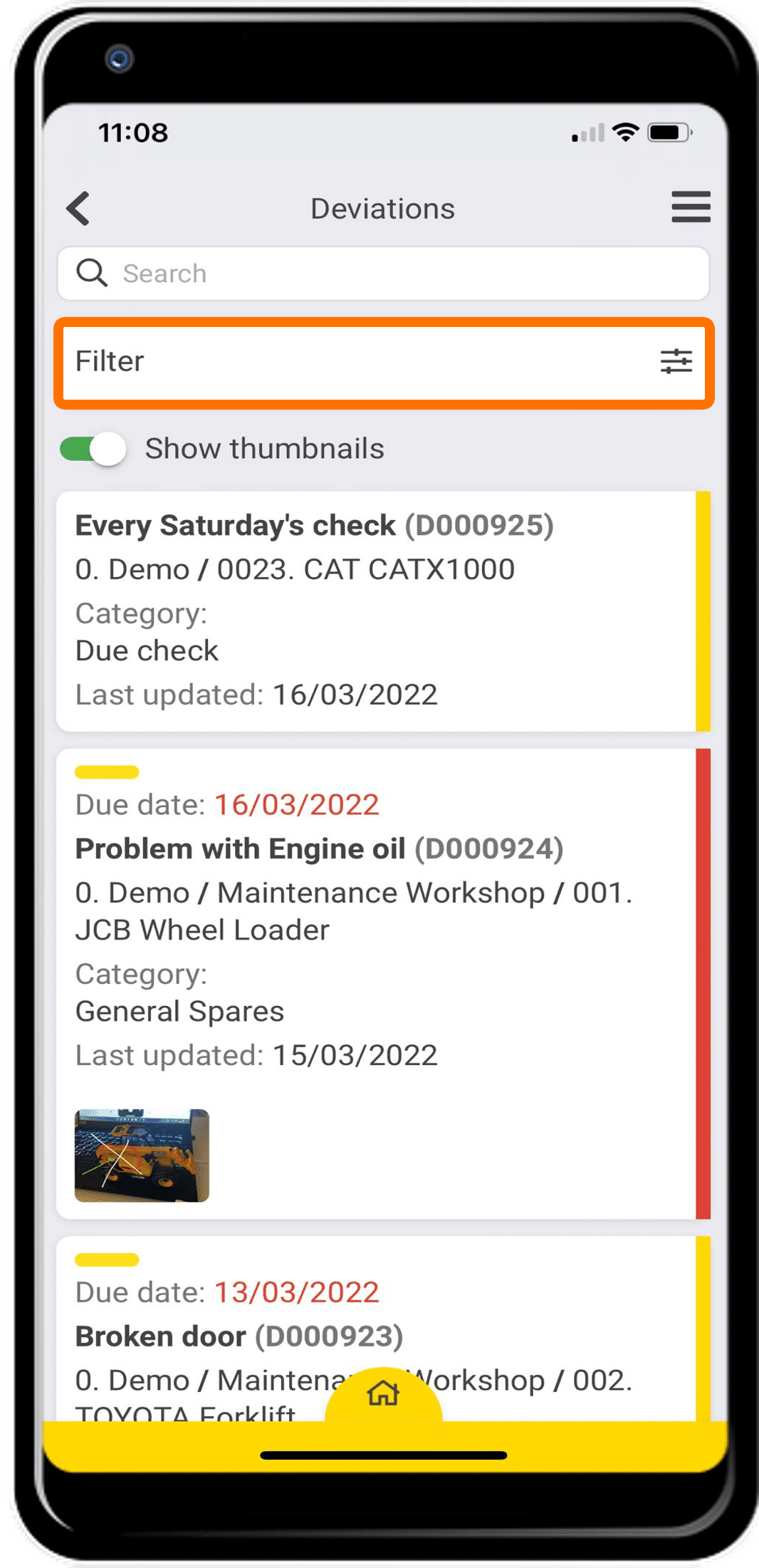
From the “Deviations” page, click “Filter”.
Filter Options
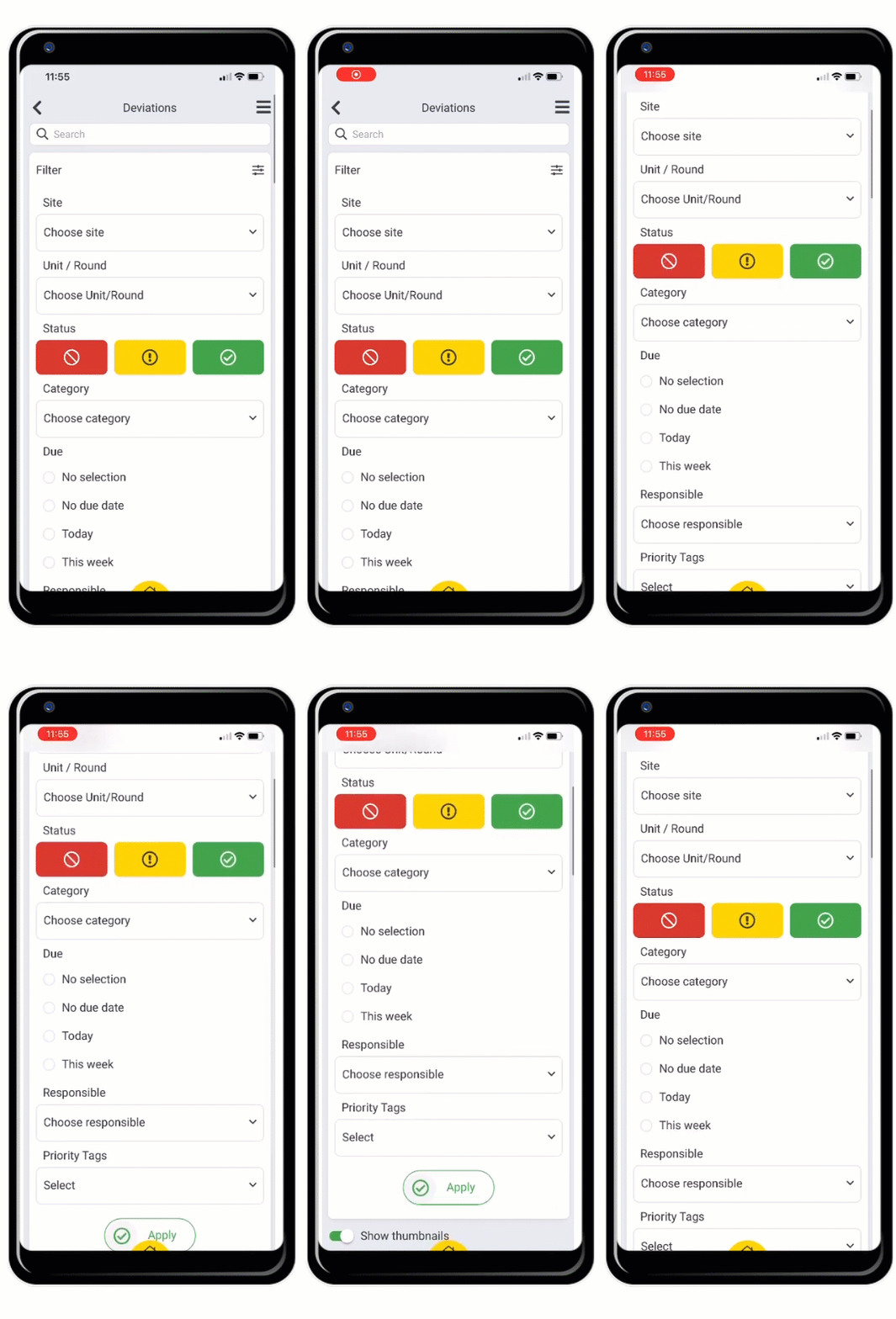
There are many filters available to narrow down your search. You will see how to filter by “Status” and by “Priority Tags”.
Filter by Status

Let’s imagine that you only want to see the tasks that are considered “Serious malfunctioning”.
- First click the “Serious Malfunctioning” icon under “Status”.
- Scroll down and click “Apply”.
- Now you can see all your tasks that have the “Serious Malfunctioning” status.
Filter by Horizontal Tag
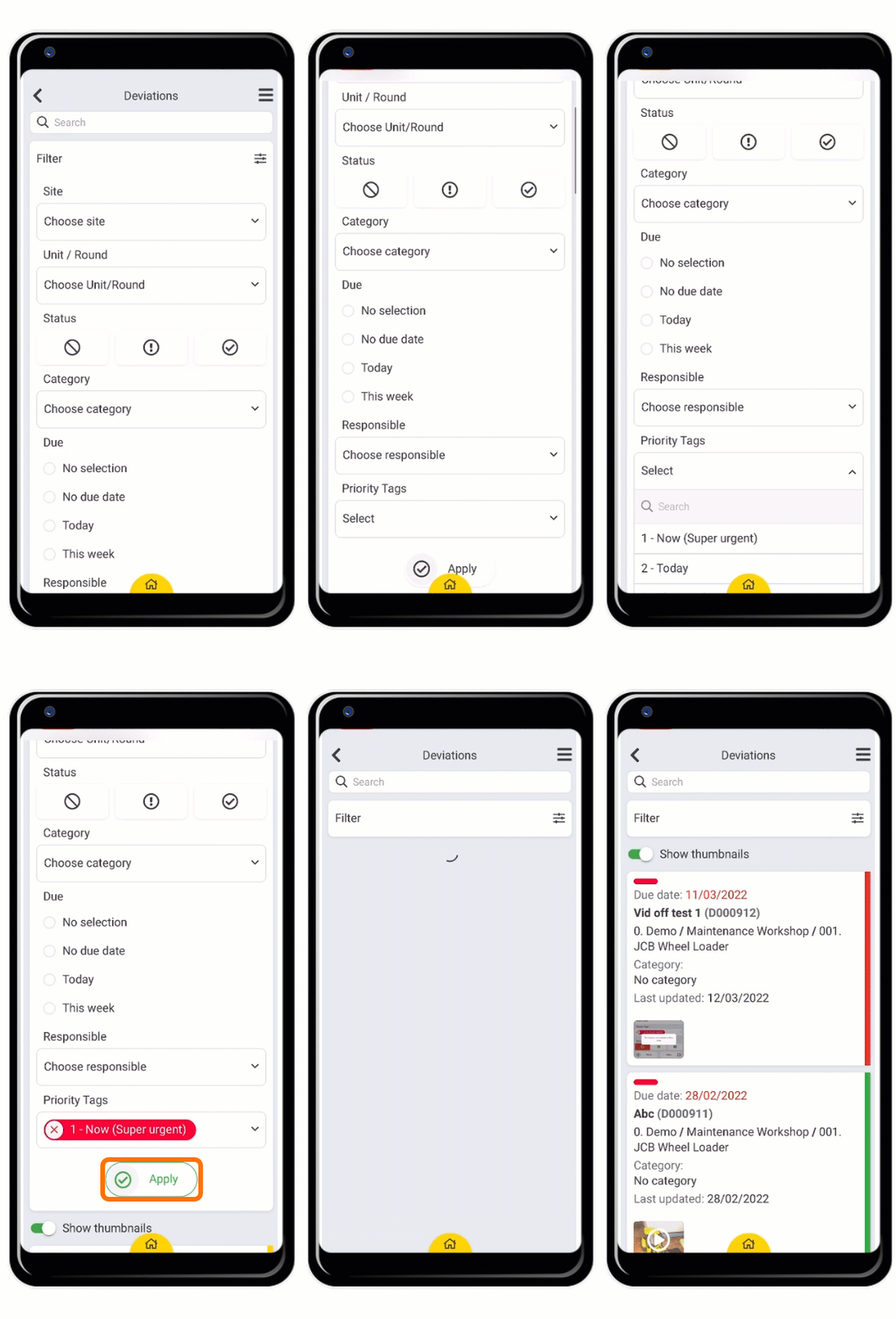
Let’s imagine that you want to see the tasks that are tagged as “1 – Now (Super Urgent)”.
- First scroll down and click the “Priority Tags” field.
- Select the option “1 – Now (Super Urgent)”.
- Click “Apply”.
- Now you can see all your tasks that have the “1 – Now (Super Urgent)” tag.
Great! Now you know how to filter by status and horizontal tag.