
Administrating Reported Deviations
Administrating Reported Deviations
All reported deviations are saved in the CheckProof Admin Panel.
You can access and manage them in different ways.
Continue reading below to learn about reported deviations.
1
OPEN DEVIATIONS
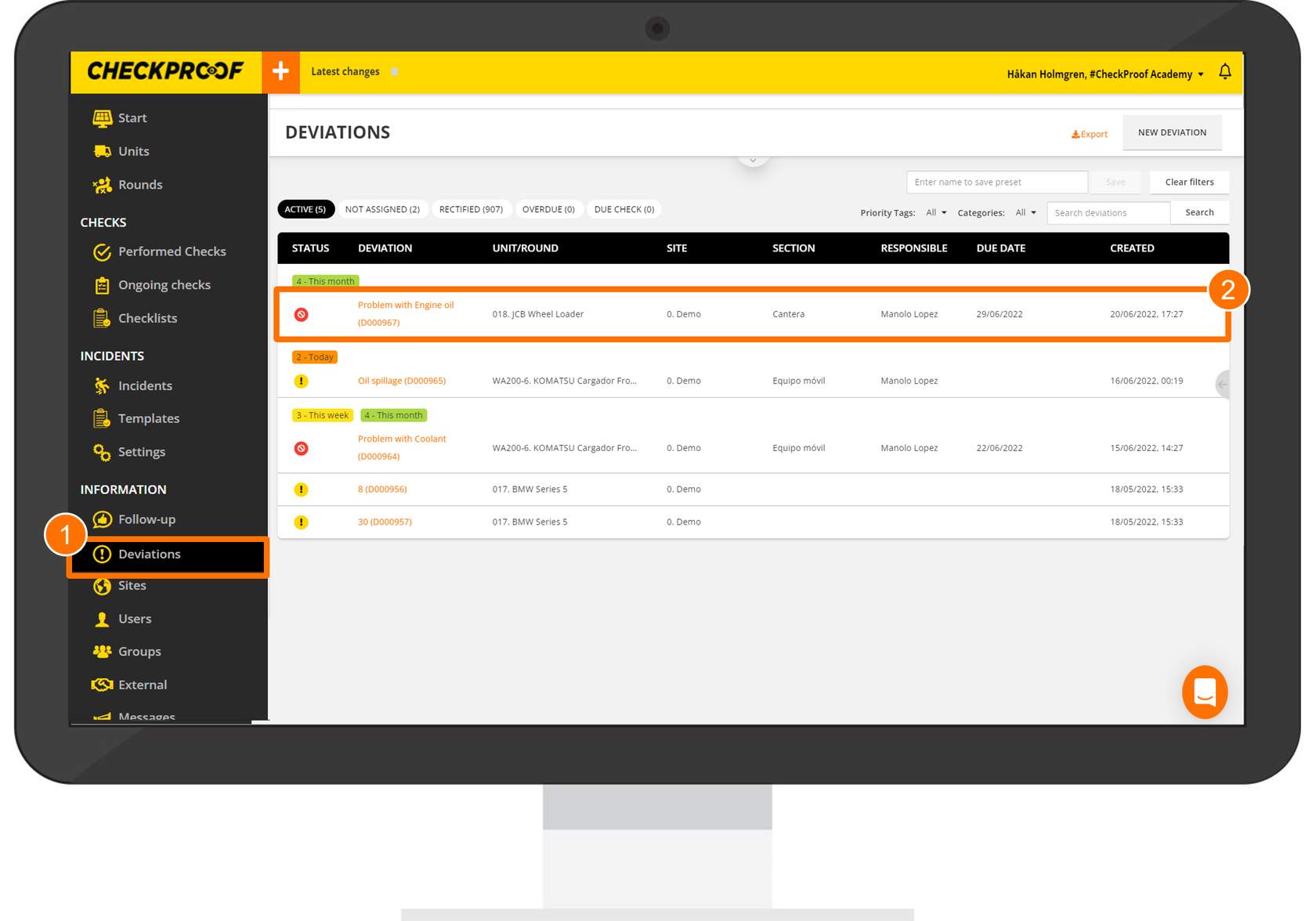
Open the “Deviations” menu in the left-side panel.
You will now see a list with all the available deviations.
Select the deviation you want to open
2
EDIT THE DEVIATION
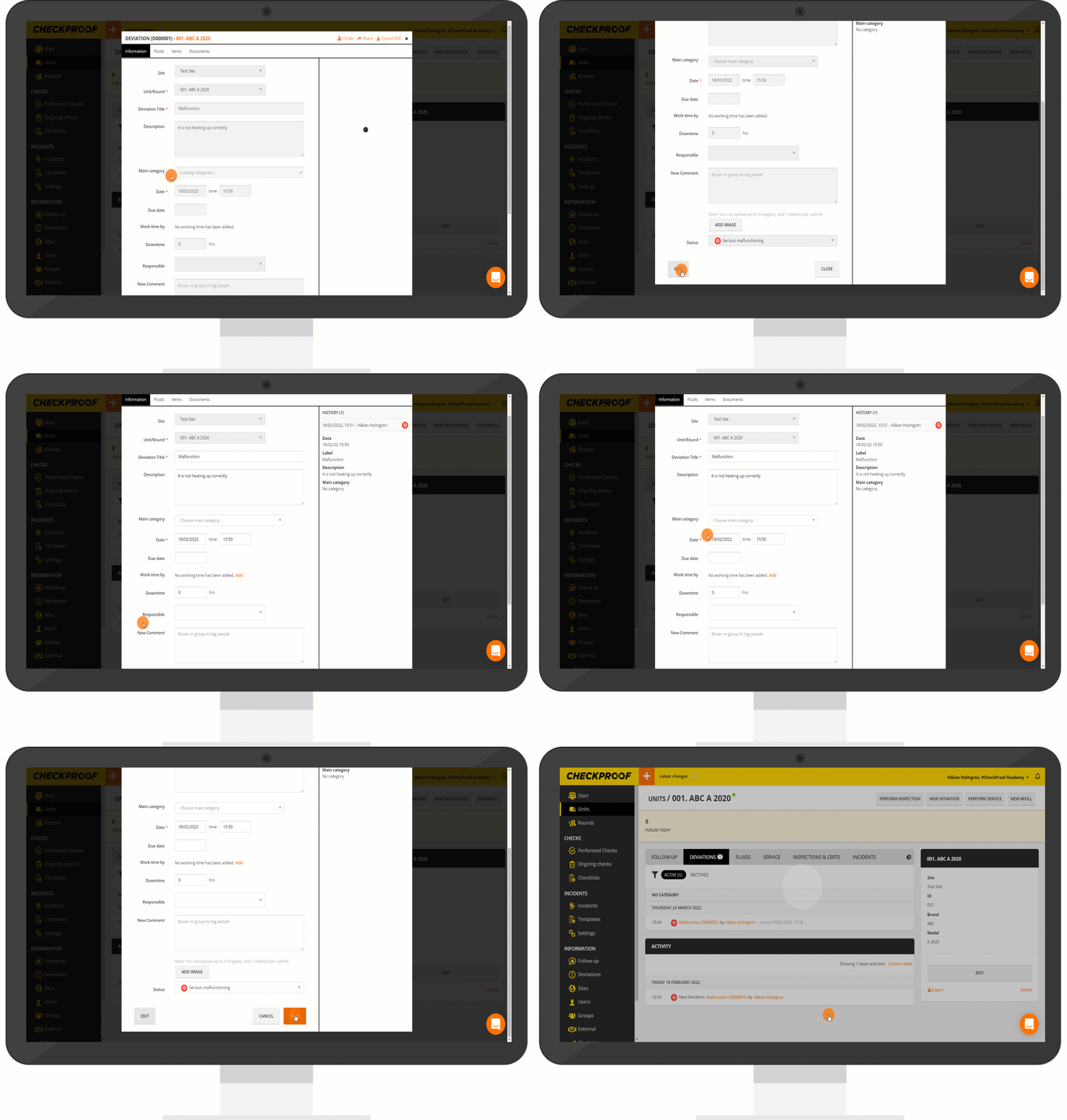
Click the “Deviations” tab to see the list of all deviations created for this unit.
Select the specific deviation that you want to edit.
Scroll to the bottom of the page and click on “Edit”.
You are now able to edit the information related to this deviation.
When you are finished, click “Save”.
3
QUICK EDIT
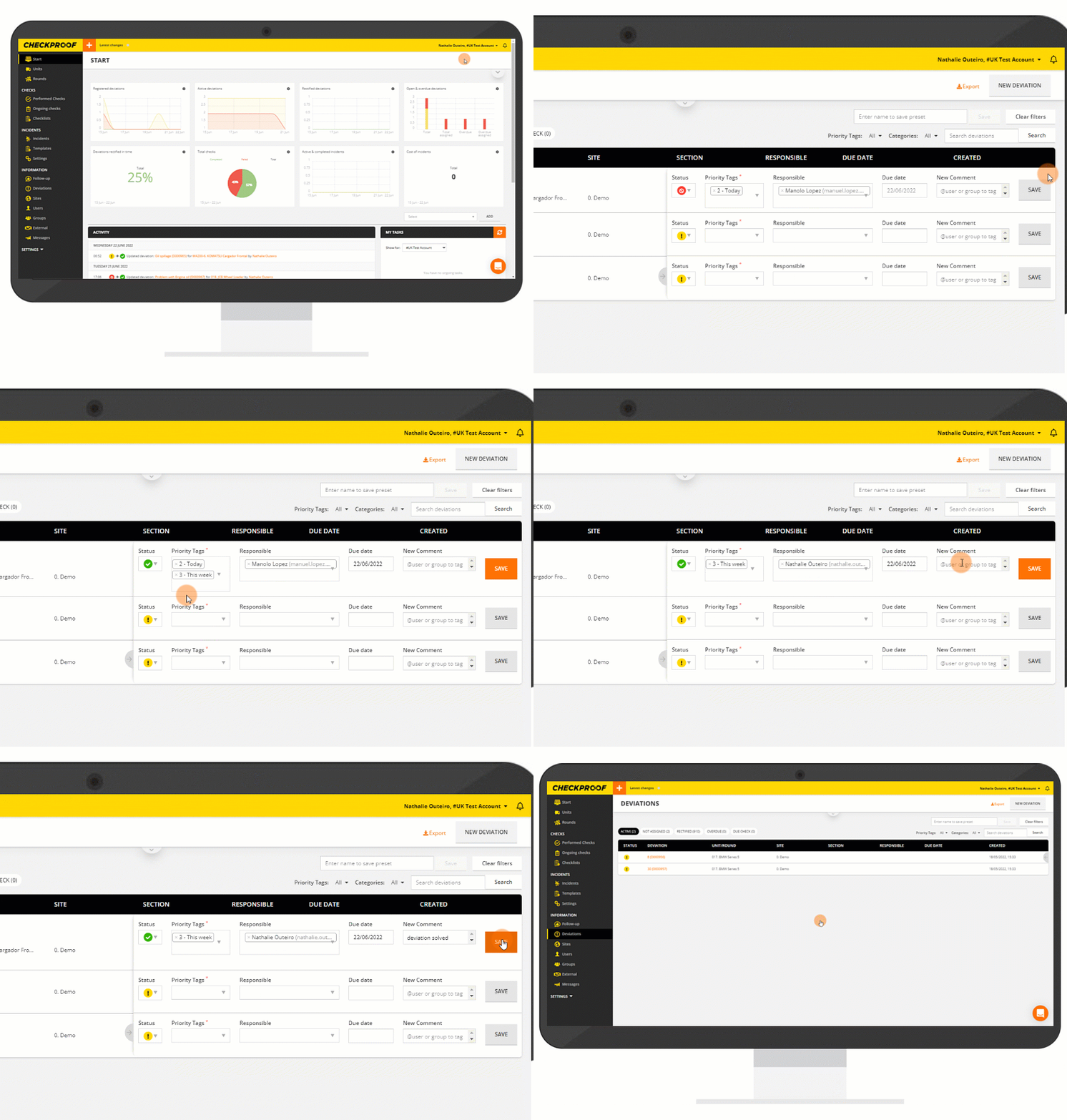
There is a quick edit option available on the “Deviations” page.
Click on the grey arrow to the right side of the deviation. A form will slide in, allowing you to edit a few fields for each deviation. These fields are:
- Status
- Responsible
- Due Date
- New Comment
Modify all the fields you desire, and click on “Save”. If you wish, you can edit several deviations at the same time. Just remember to click on “Save” for each deviation.
Click on the grey arrow again to close the quick edit table.
Great! Now you know how to edit a previously reported deviation.

