
Exporting and Sharing Checks
In this lesson, you will learn how to export and share performed checks.
Exporting a Check
1
SELECT A CHECK
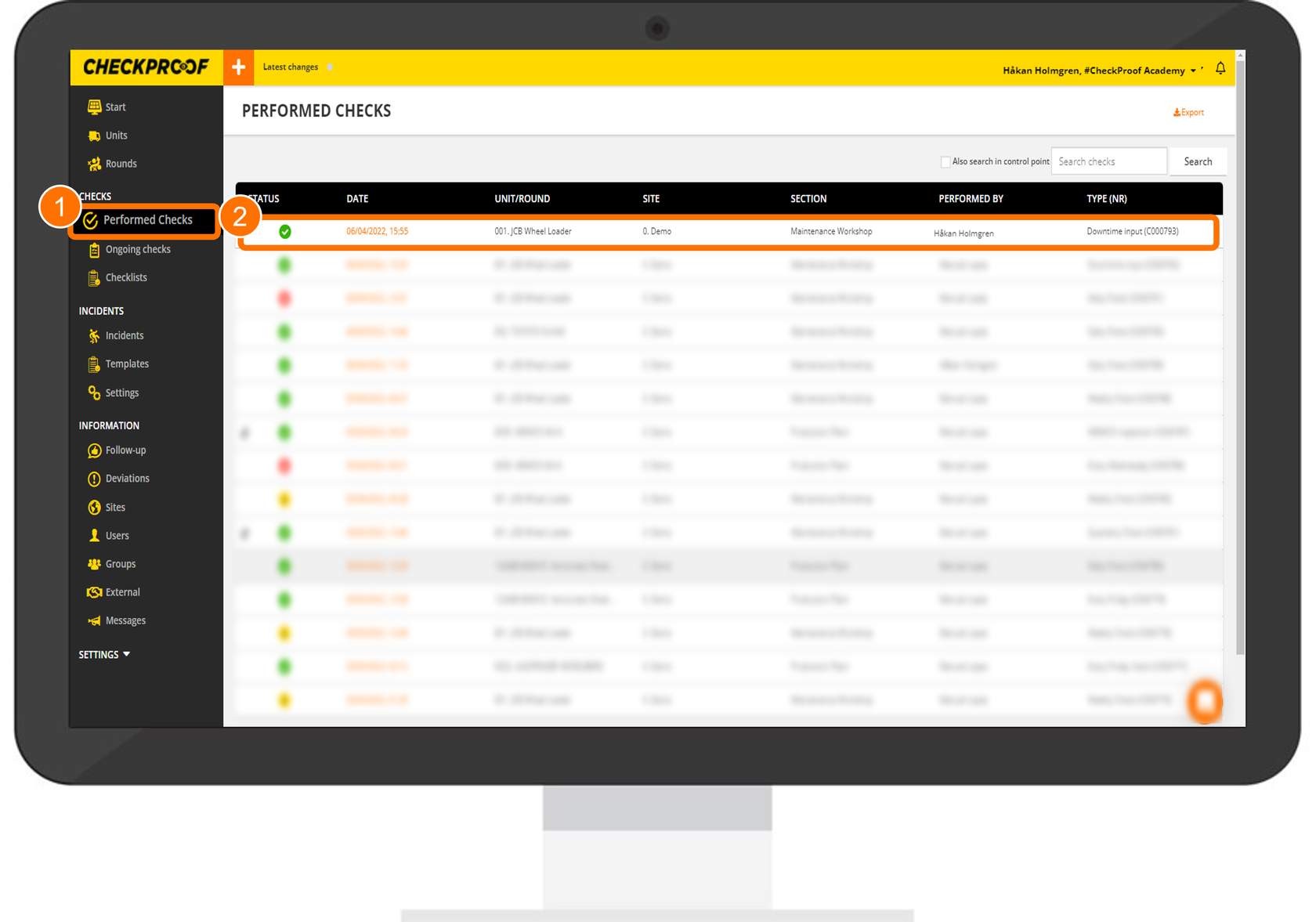
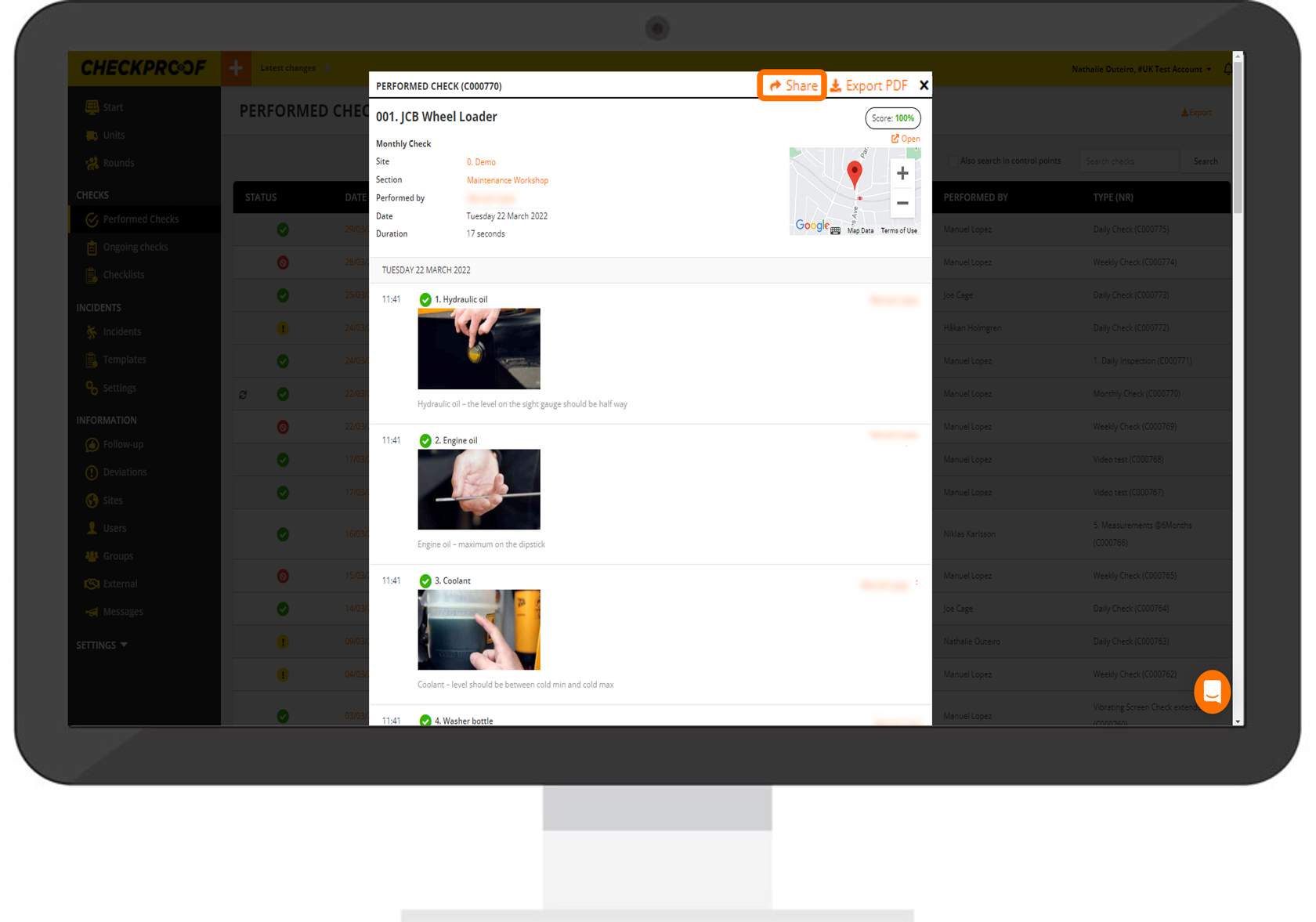
To export a check that has already been performed, you need to click “Performed Checks”
in the side panel menu, and then select the check from the list.
2
GENERATE THE PDF
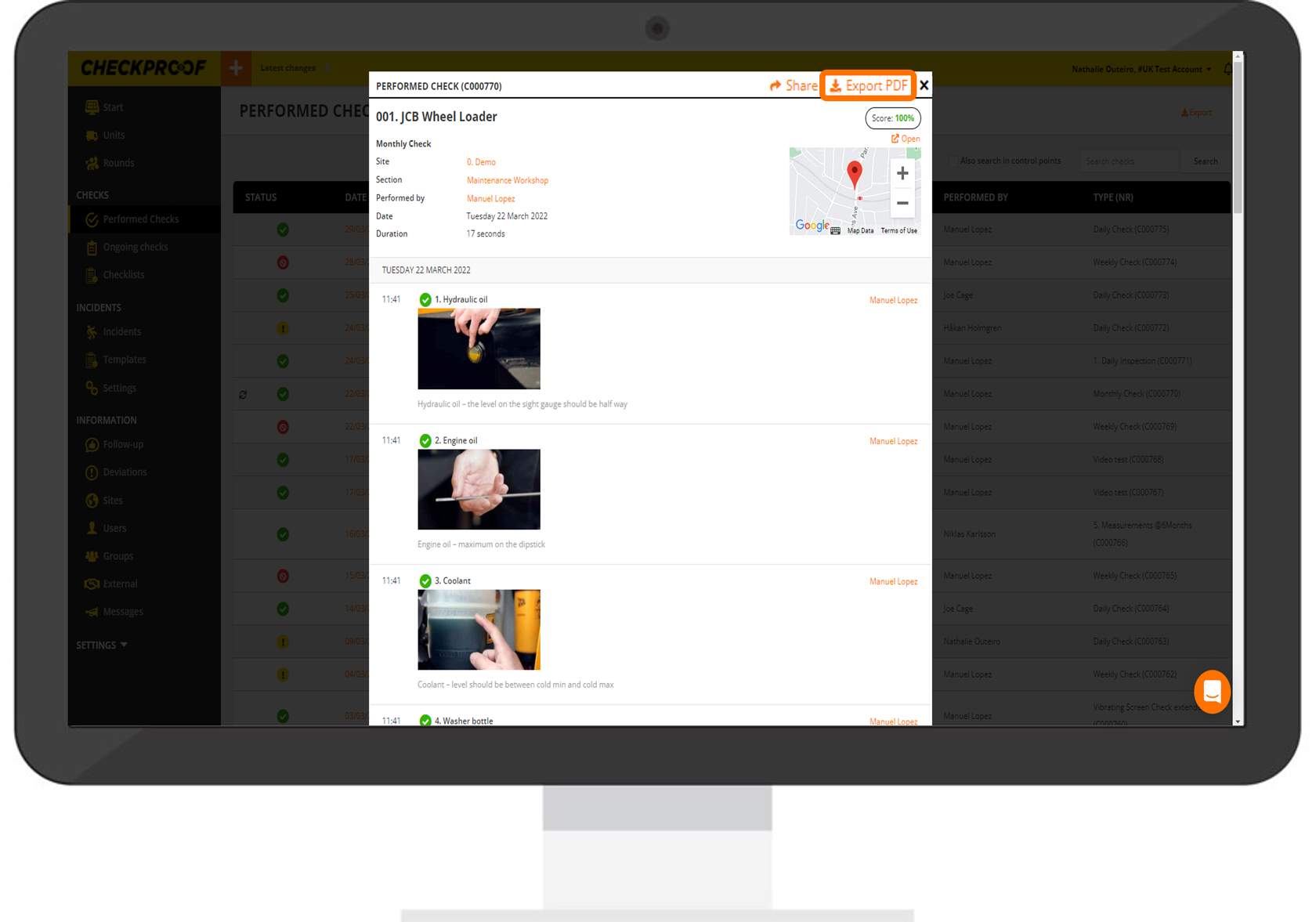
Now click on the “Export PDF” button at the top of the page to generate a PDF of the performed check.
3
DOWNLOAD THE PDF
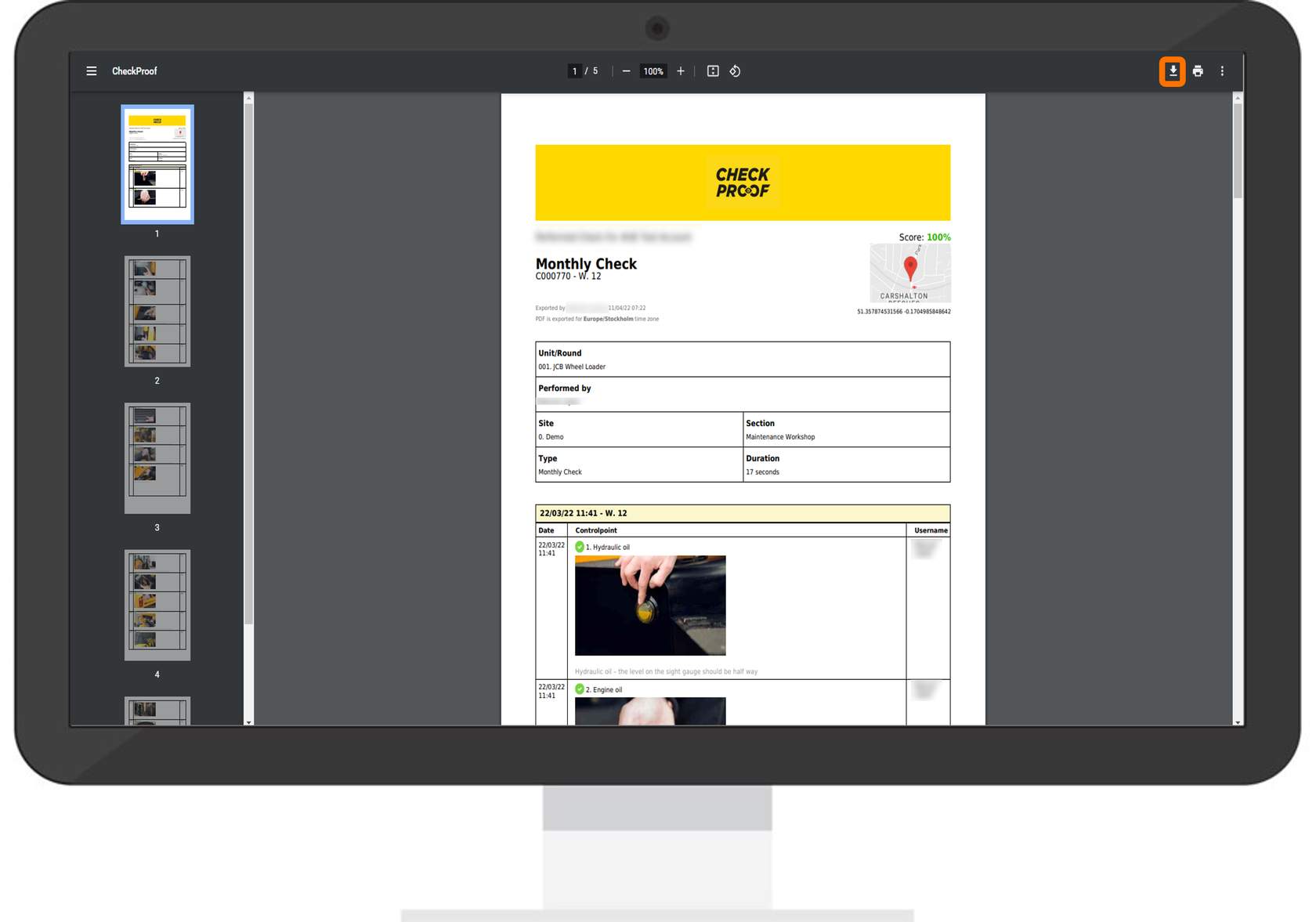
Now click the download icon to download the PDF. It will appear in the downloaded files on your device.
Sharing a Check
Select the Check
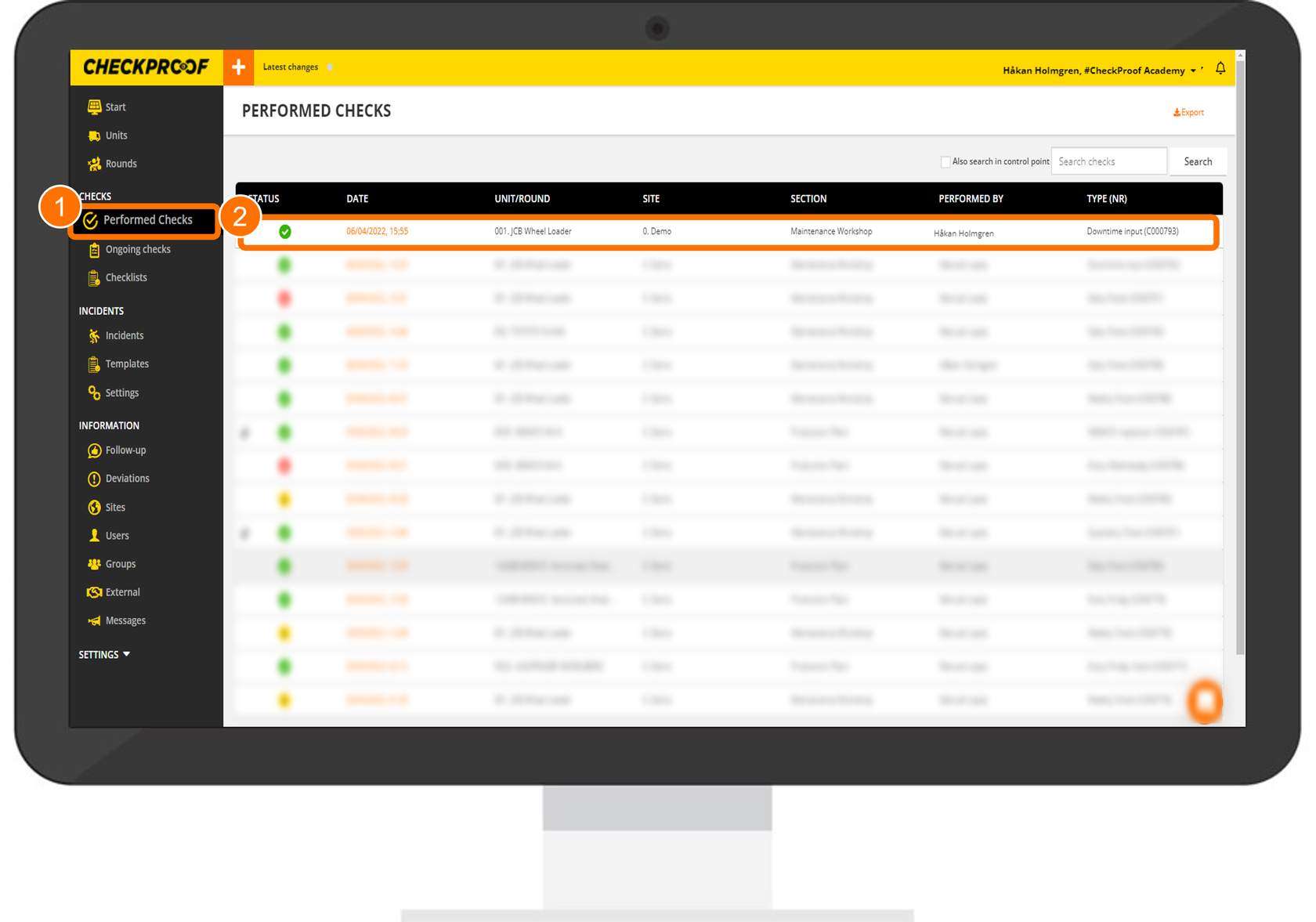
To share a check that has already been performed, you need to click “Performed Checks” in the side panel menu, and then select the check from the list.
Share
Now click on the “Share” button at the top of the page
Share by Email
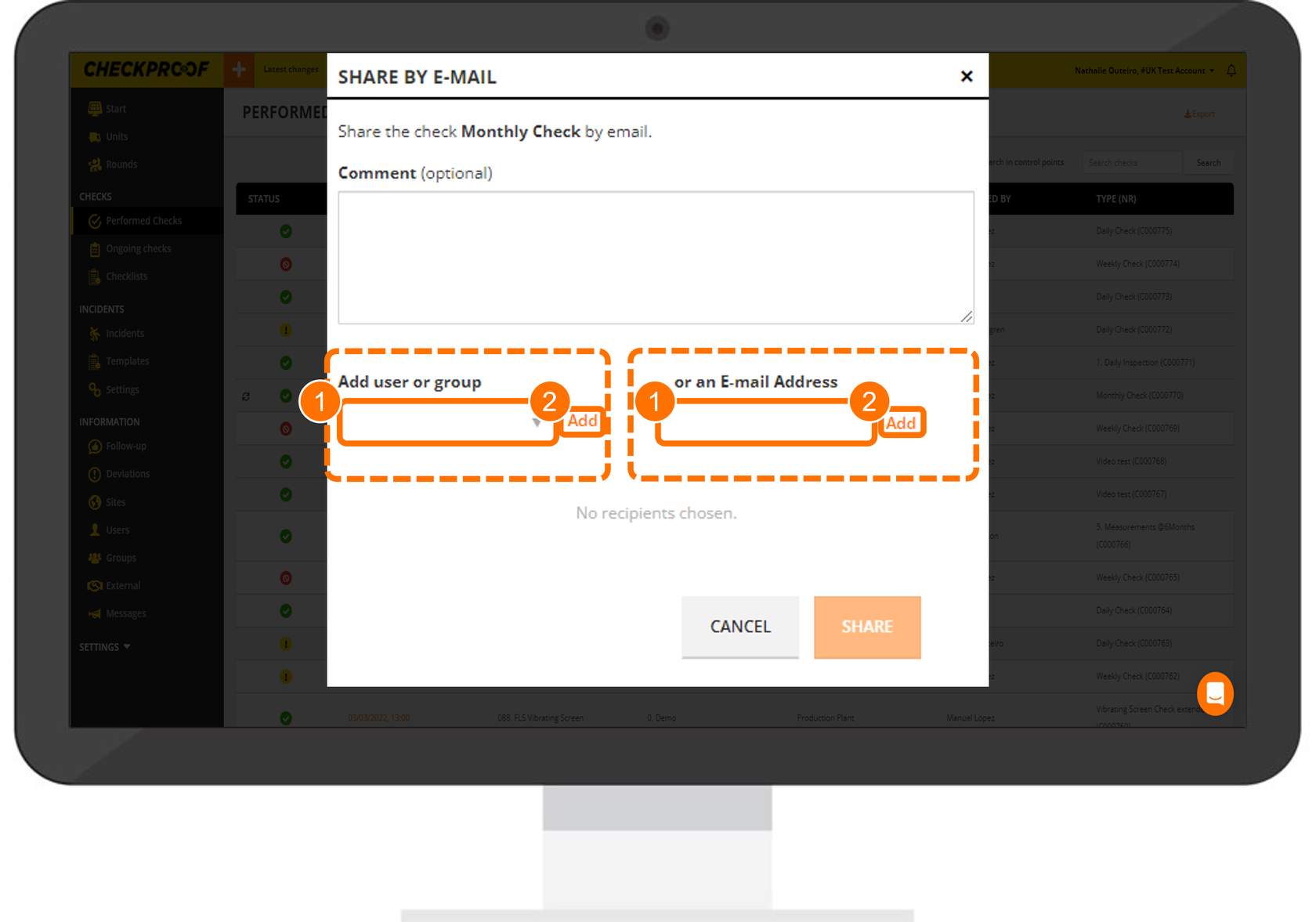
You will be presented with two ways to share the check.
The first option is to add a user or group that is already in the system. To do that, click the arrow in the “Add User or Group” field, then choose the user or group from the list. When you are done, click on “Add”.
You could also enter any email address in the “Email Address” field, and then click on “Add”.
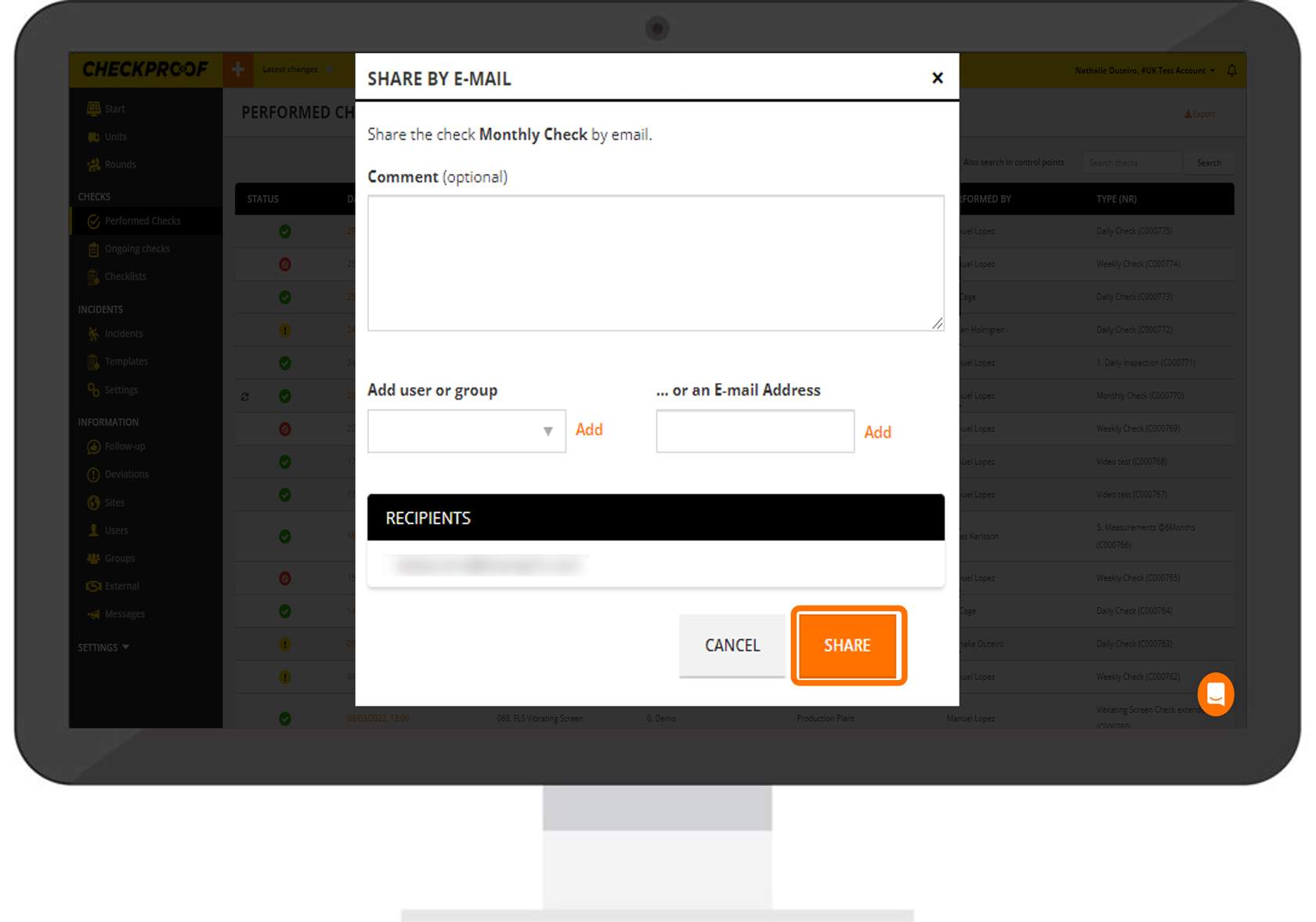
Share by Email
You will be presented with two ways to share the check.
The first option is to add a user or group that is already in the system. To do that, click the arrow in the “Add User or Group” field, then choose the user or group from the list. When you are done, click on “Add”.
You could also enter any email address in the “Email Address” field, and then click on “Add”.
Great! Now you know how to export and share performed checks.

